Configure your first store (step by step)#
This getting started guide walks you through setting up a new store from scratch and testing Search and Chat using our playgrounds.
The guide is intended for store administrators and focuses on the minimum steps required to get your data indexed and searchable.
Step 1: Register#
Go to our Back-office login and ask for an account by clicking Request Access. Provide a real email and a domain which identifies your store (can be a real domain or a test domain if you don't already have a domain for your store.)
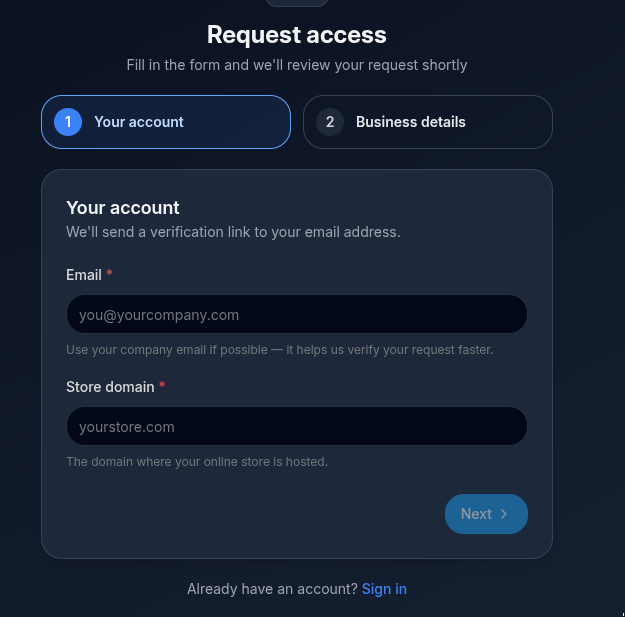
After registration you will need to wait until one of our moderators approve your store in which case you will receive a password to login to our Back-office login:
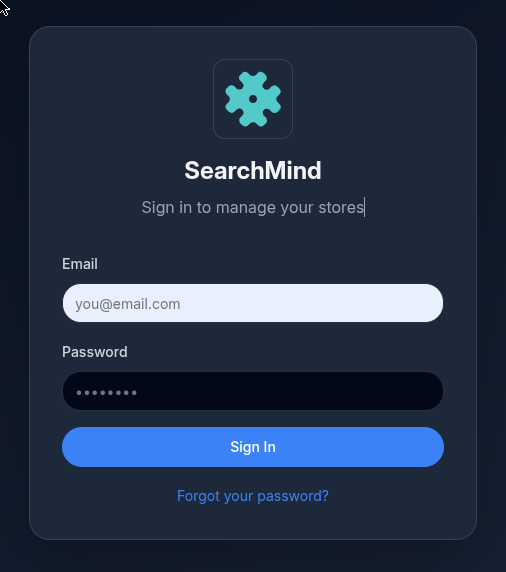
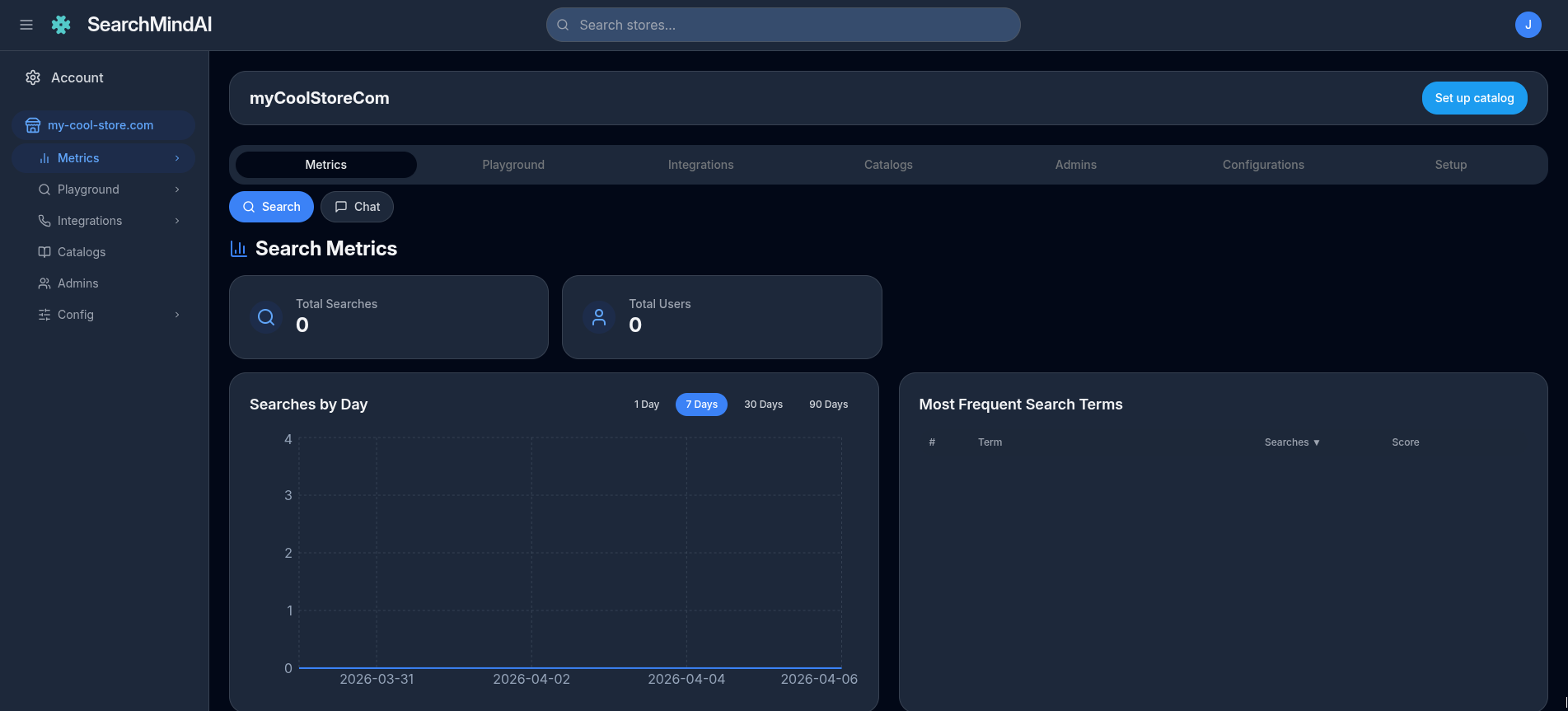
After login in, you should see your store dashboard:
Step 2: Adding data#
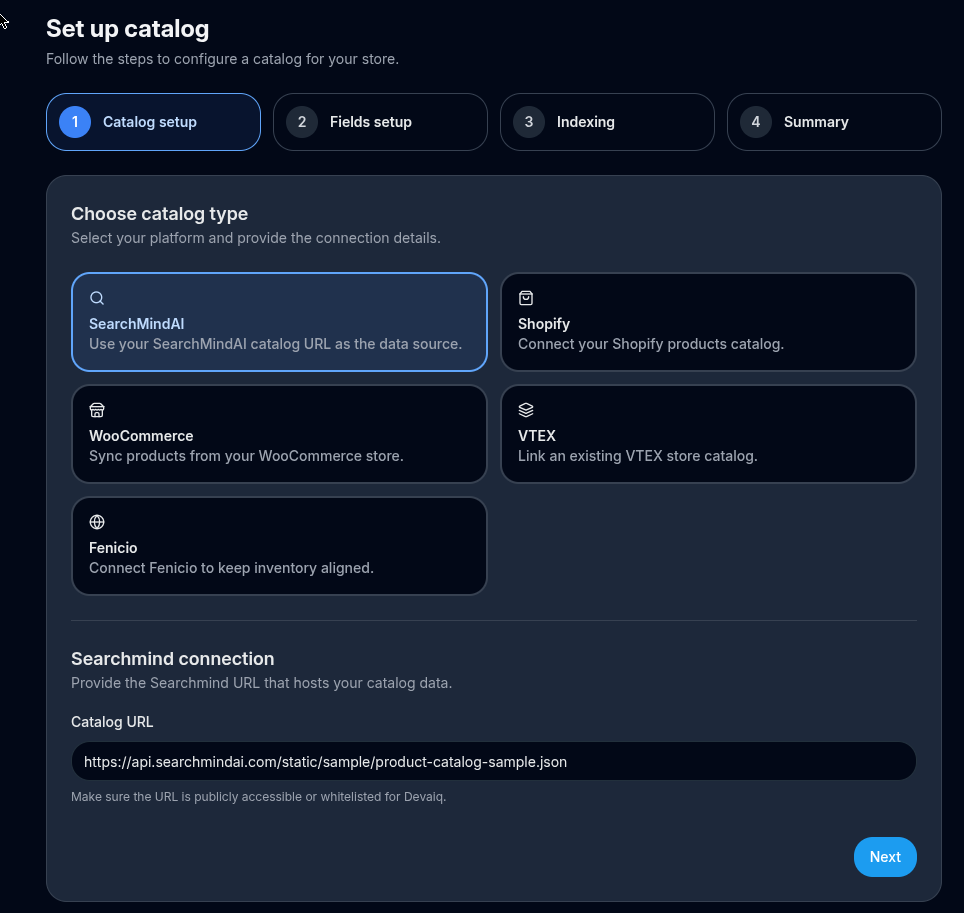
In the previous screenshot, there's a "Set up catalog" button at the top-right. This is shown when there's no catalog and takes you to the create catalog wizard:
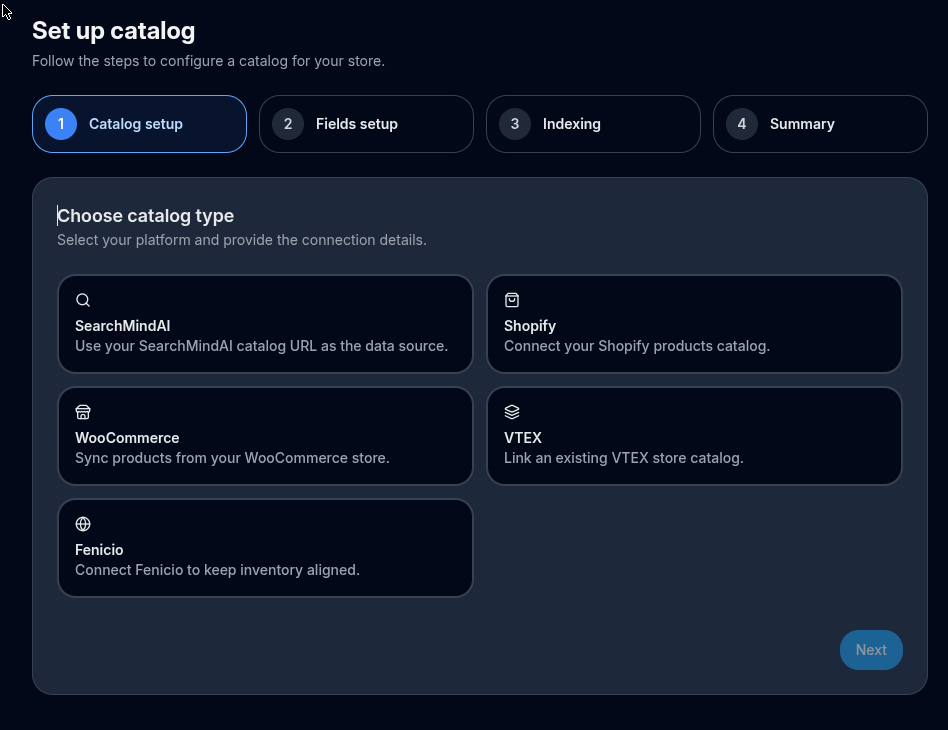
The next step is to load your store’s product catalog. This data will be used by both Search and Chat services.
On this example we will use a sample "SearchMindAi" catalog, so click on and at the bottom enter the following catalog URL: https://api.searchmindai.com/static/sample/product-catalog-sample.json:
Tip
The catalog given is very small, to test more realistic ones see Catalog examples. To learn how to connect catalogs from platforms like Shopify or WooCommerce, or to configure data synchronization, see Catalog reference doc.
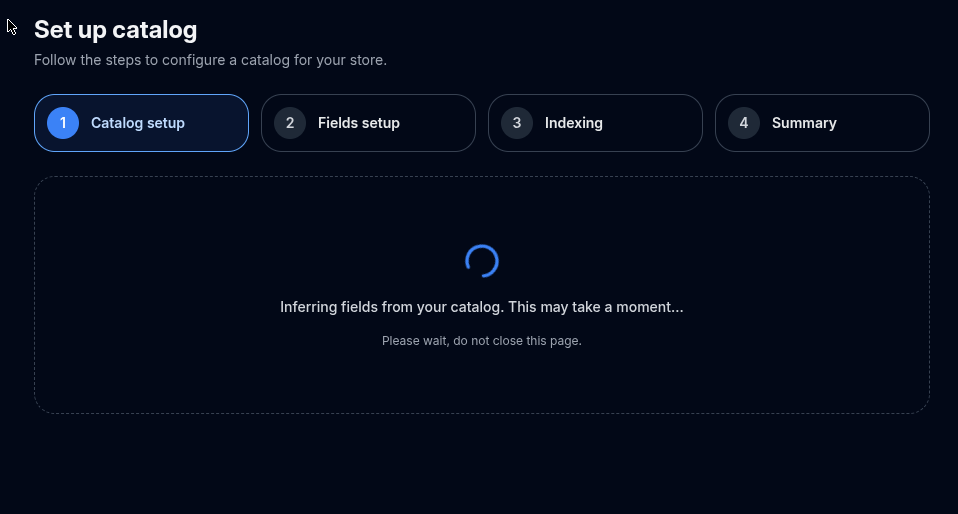
Clicking "Next" will trigger field inference which basically will inspect the catalog data to infer product fields such as name, price, tags, etc. This could take a moment, depending on the catalog type:
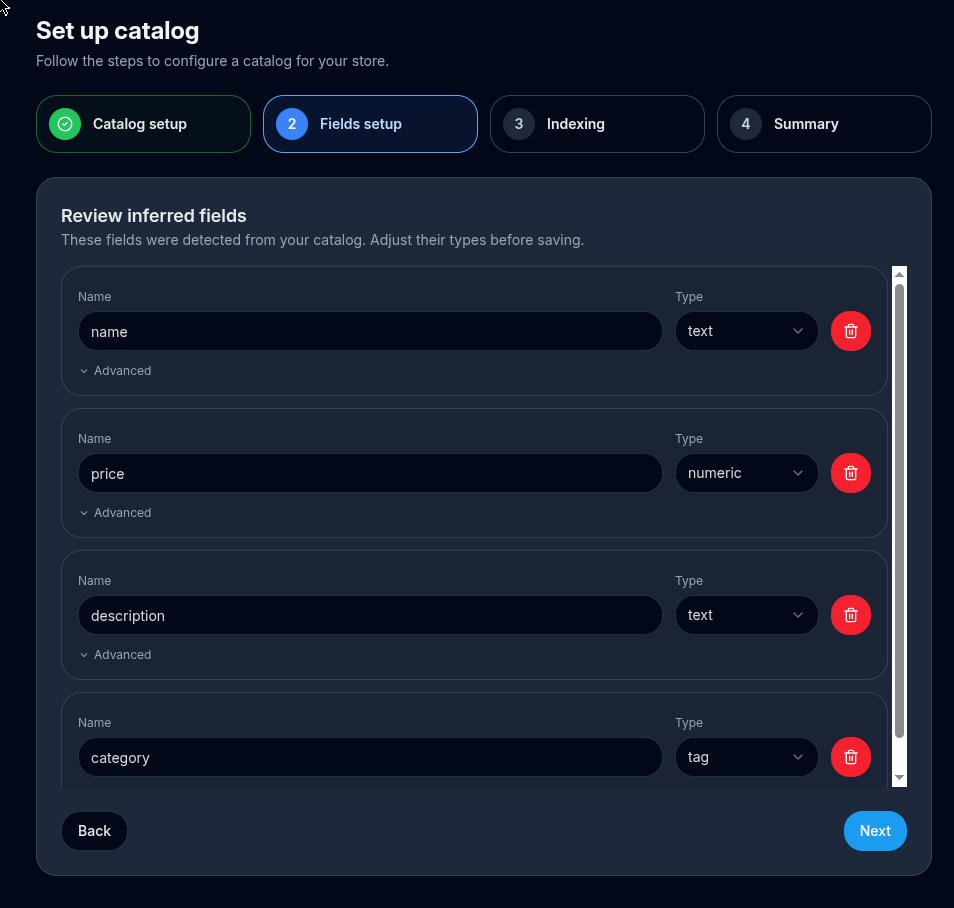
When field inference has finish, you will have the opportunity to review all fields, mostly to make sure their types are correct. We do our best to infer the correct field types, but it's always a good idea to review before proceeding.
Tip
To learn more about field configuration, see Catalog fields.
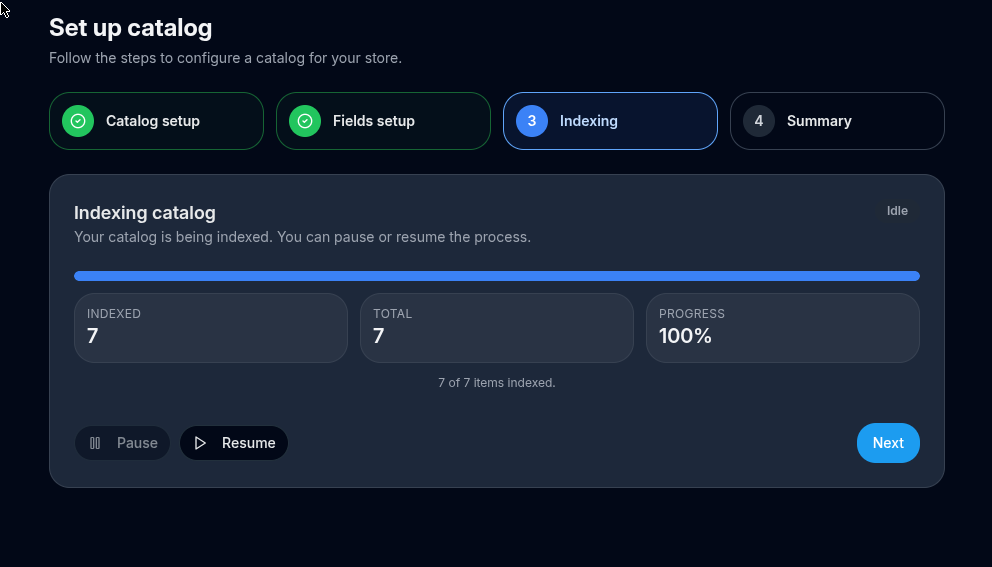
Now, click "Next" button and the indexing of all products will start. In the following screen you will see the real time progress until it finish. Indexing big catalogs could take minutes, but if a few documents are indexed you are ready to start playing with search and chat playgrounds:
Step 3: Play#
At this point, your data is indexed and ready to be tested both using search and chat services using our playgrounds or API.
Test search#
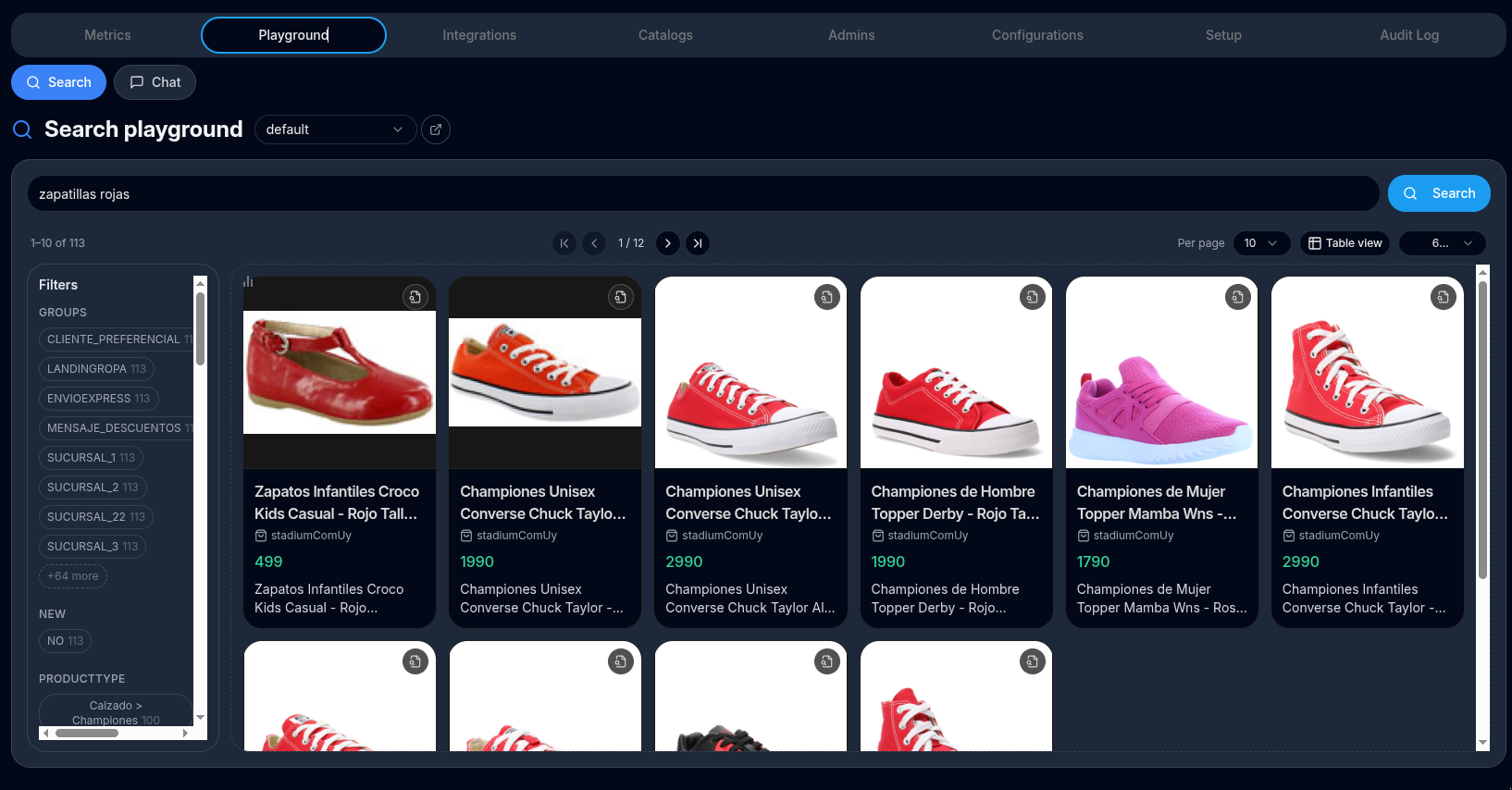
For testing search, you go to Search main tab, write a query like "gift technology for teen" and click Search button - at the bottom you should see results:
Tip
By default it will ignore all playground settings and use only parameters defined in the configuration, but you can call search with API parameters such as "mode", "filters", etc by unchecking Skip params. See Adjusting configuration below
Test chat#
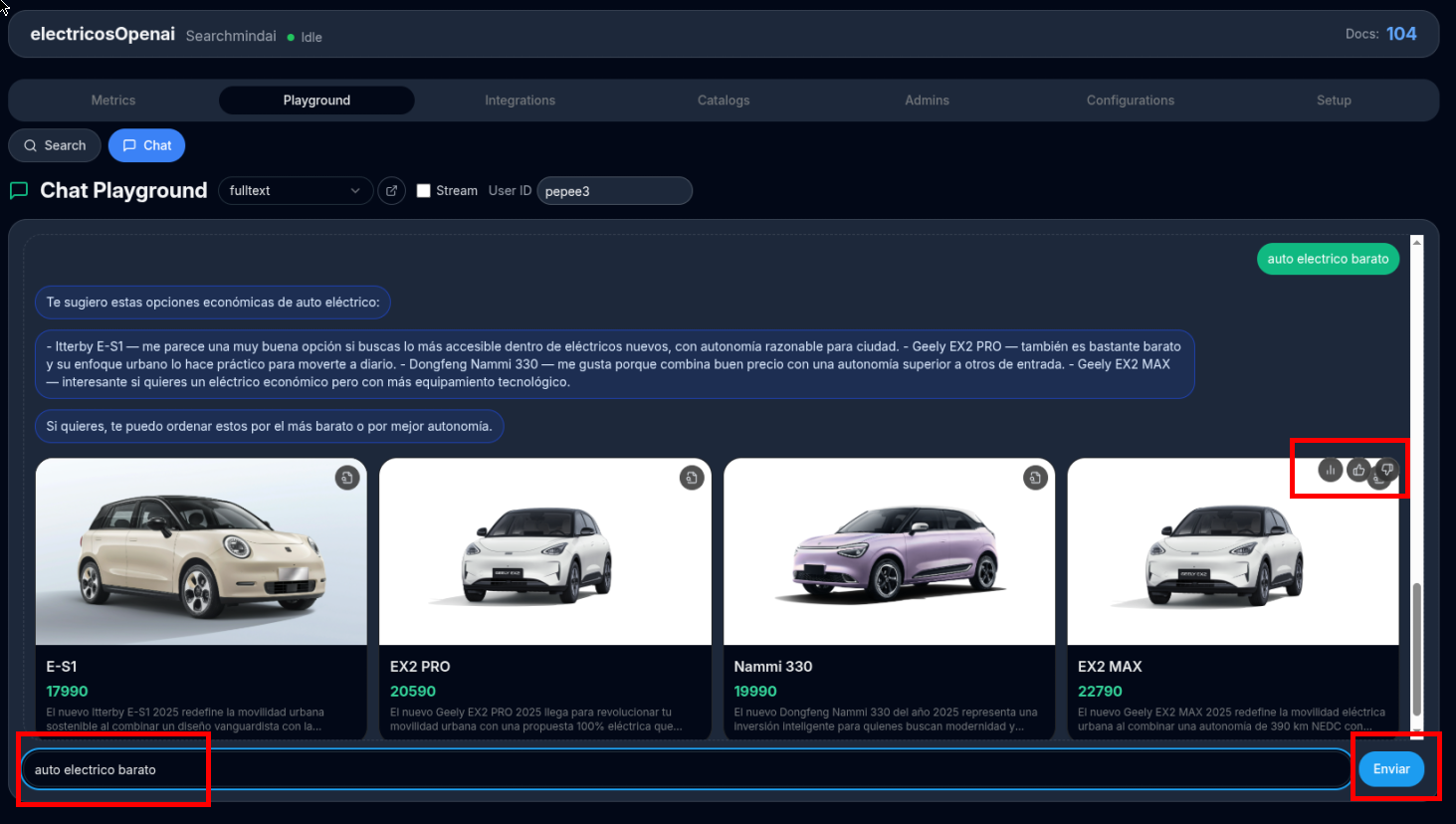
For testing chat, you go to Chat main tab, write a question like "technology present for my nephew 12 years old"
Tip
By clicking Stats button in the answer you can debug some internal metrics about semantics, plugins, inference on that particular question-answer interaction.
Step 4: Adjust configuration#
The default configuration for both chat and search is pretty simple and you probably want to customize. The following sections explain how to work on common user needs:
For an overview of configurations and detailed information about each functionality, see Configuration reference.
Control irrelevant documents using score cluster filter#
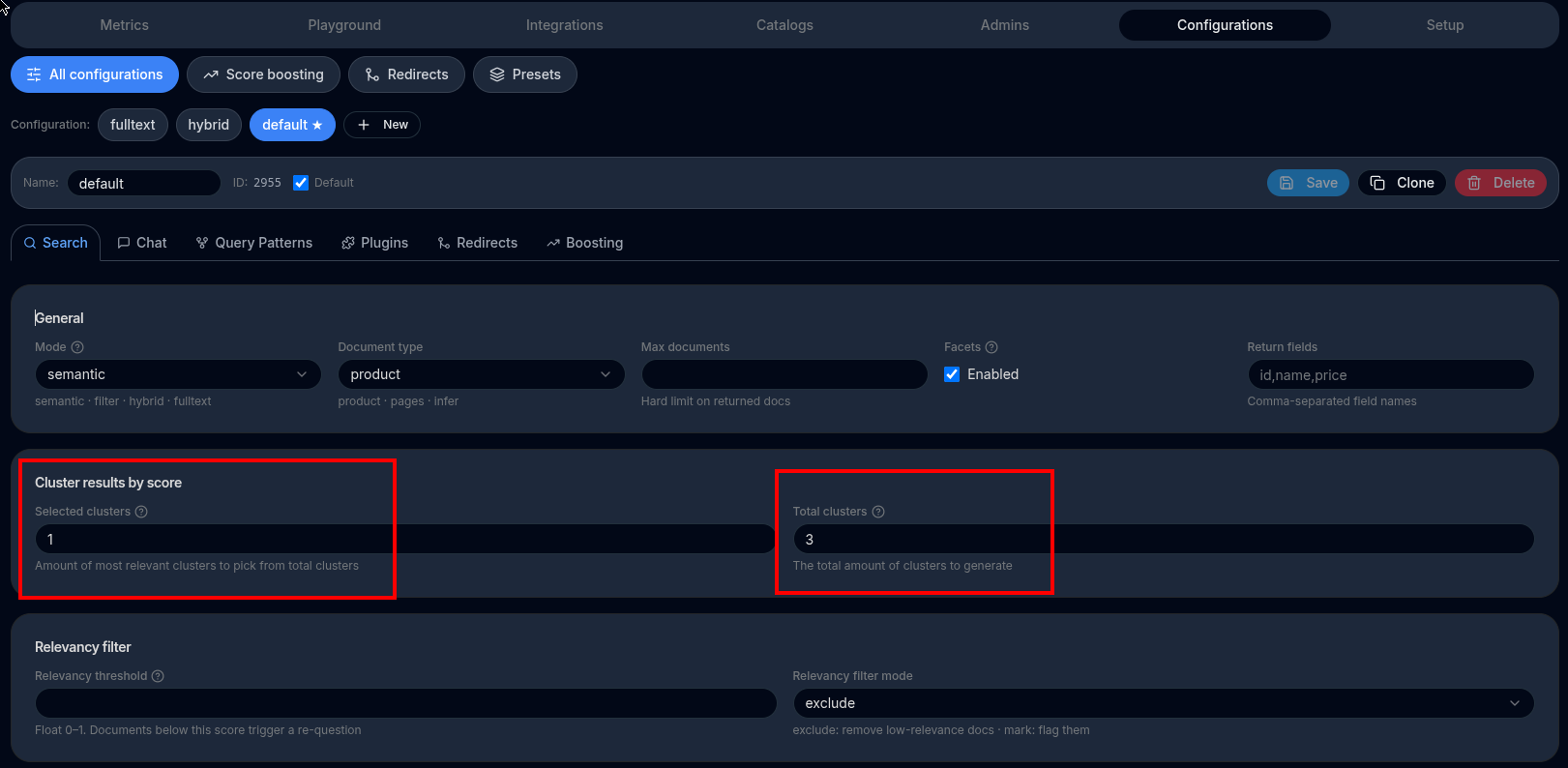
A semantic search, by default just sorts the results by relevancy, but doesn't apply any filters. This means if user's paginates/scroll-down in page results they will end up seeing irrelevant results. One way to fix this problem is by applying a relevancy-cluster filter, which basically will "cluster" the results by their relevancy score in N clusters and then return only the most relevant ones. For this, go to Configuration->Search->Cluster results by score and enter 1 for "selected clusters" and 3 for "total clusters". Save. You can go back now to search results and verify that searching for "technology"
Tip
For more information see cluster filters.
Search by SKU or ID and preventing zero results#
SKU search support through Query patterns plugins
In some use cases, is very common to use the web-store to search products by SKU. The default semantic search doesn't perform a good job for this, and it's convenient to perform a fulltext search in those cases.
Under the hood configuring sku search support or preventing zero-results could be challenging since it implies defining different configurations (semantic, fulltext, hybrid), redirect rules, etc.
Fortunately this can be easily accomplished by using configuration presets.
For more in-deep information please refer to: * New Configuration * query pattern plugins reference docs.
Chat memory#
See Chat memory configuration to enable chat conversations with memory, this is the user is able to ask and refine their search in multiple separate questions like "shoes" -> "running" -> "women size 40" -> "under 100".
Chat with other documents (pages catalog)#
You can feed "pages" documents such as policies, frequently asked questions, etc into the system by creating a "pages catalog", see Pages catalog