Configuration#
Introduction#
Here you will learn about all our features which can be used to configure both search and chat services.
Important
In the following sections we separate between search and chat configuration options. However, since chat implementation is based on search search configurations could also apply on a chat-assistant on how relevant documents are provided to the LLM.
Multiple configurations#
When a store is created there's only one default configuration, but in general you want to have several configurations, for example:
- one for web ecommerce site search products where is important to display the most relevant products to user's query, support user's profile and context, apply product rankings / promotions, etc.
- one for web ecommerce site autocomplete experience where is important to support SKU / fulltext search and to be fast
- one for chat assistant in the web ecommerce site where is important to have an interactive conversation
- one for whatsapp ecommerce channel where is important just to display most relevant products or information in a brief way.
- you want to define redirect rules and apply a fulltext-search configuration if user's query is a single word with numbers, or a semantic search otherwise (see Query pattern plugins)
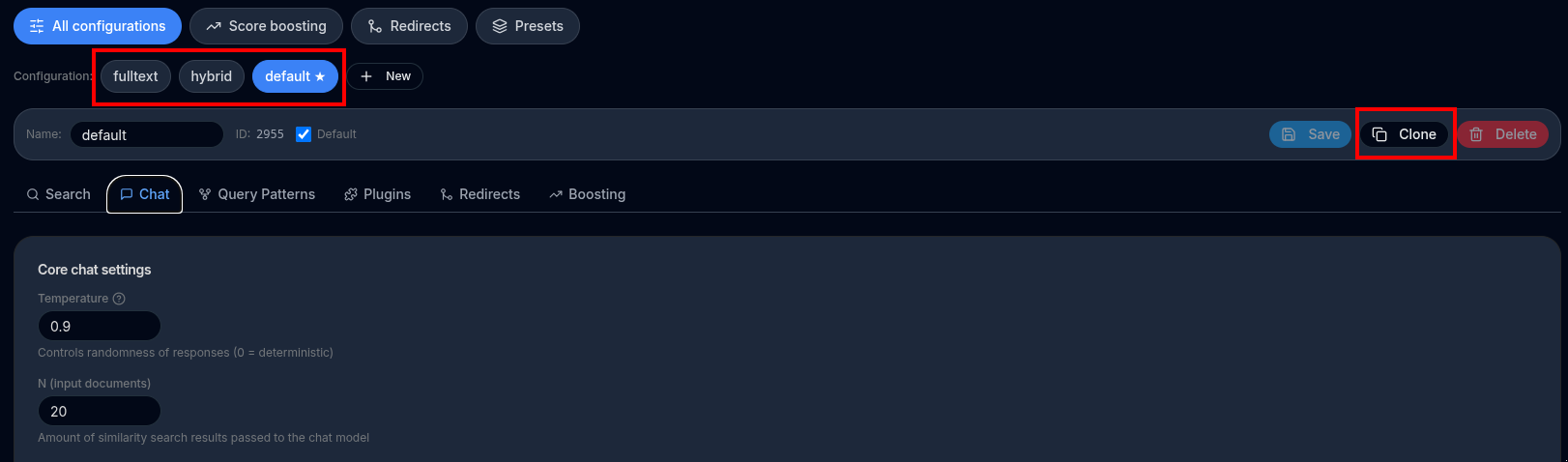
To create a new configuration, use the Clone button, and give it a name, for example, chat-assistant:
To switch , edit and test your configurations you can use the Select Configuration dropdown:
Configurations vs API#
Many features available in the Search and Chat APIs are also available through a configuration option in the back-office Configuration screen.
This allows you to define most behavior directly from the UI, instead of requiring a developer to update parameters in the API call code.
When both are provided, API call parameters always take precedence and override the configuration values.
In most cases, you should call the Search or Chat API by only specifying the configId, without additional parameters. The main exception is dynamic behavior, such as filtering by fields at runtime.
Store setup#
API Key#
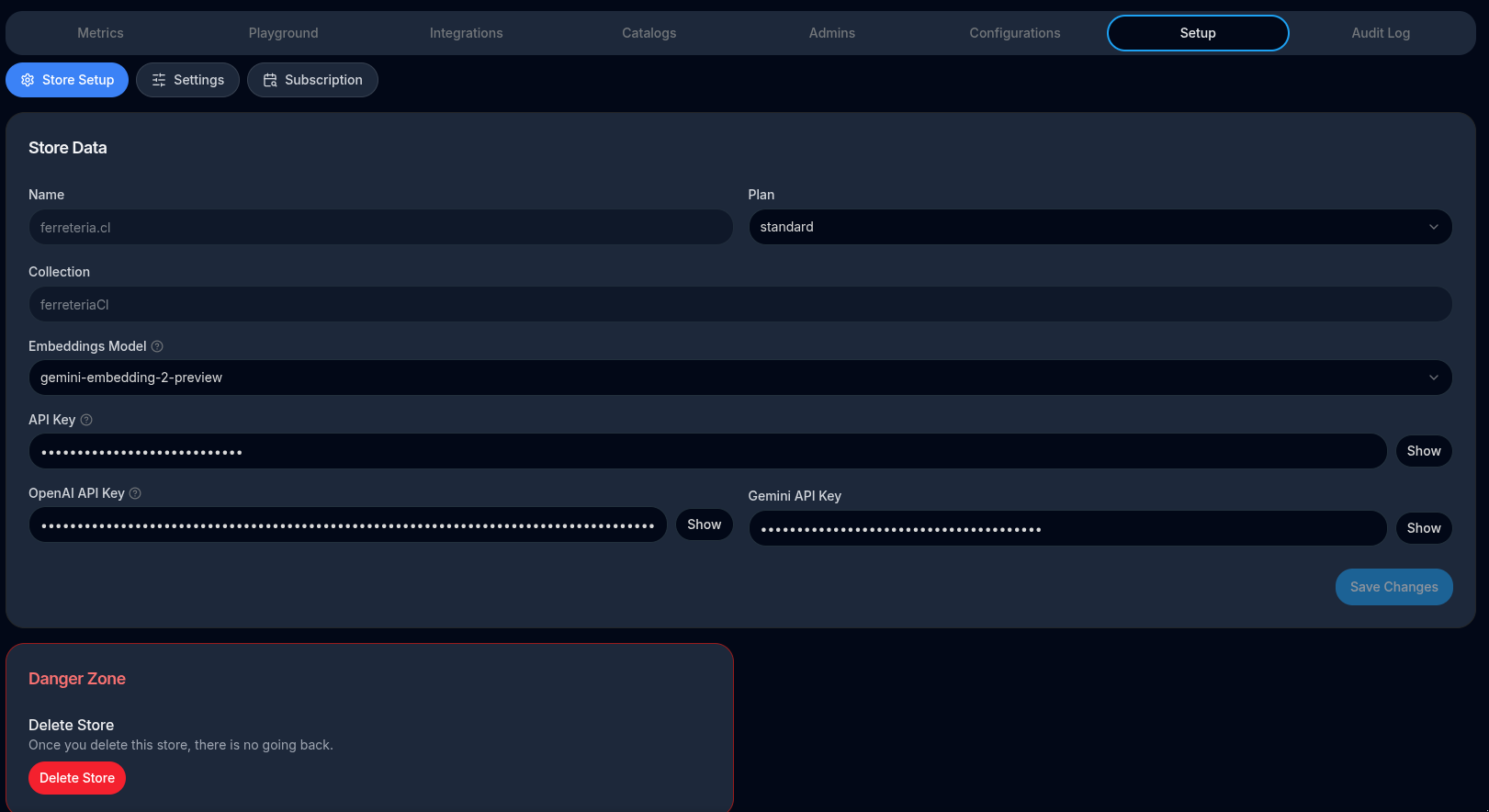
This is the API Key you need in order to call SearchMindAI services such as search and chat.
See API reference documentation to check how to use this parameter in your integration.
OpenAI API Key#
In order to use SearchMindUI you need an Open AI API key. If you are on FREE plan then your OPENAI API key is managed by us so you don't have to worry.
Follow these instructions to get your key.
In case you plan to have a lot of traffic you can add more than one key comma separated so Open AI rate-limits can be alleviated by "load balancing" traffic between them.
Embeddings Model#
Store Embeddings Model
When documents are indexed for semantic search, an embeddings model converts text into vectors stored in Redis. The model is configured per store via the embeddingsModel field. The required API key depends on the provider.
Supported models#
OpenAI (requires openAiApiKey)
- text-embedding-3-small (default). Latest, cost-efficient small embedding model. Suitable for general-purpose, cost-sensitive applications.
- text-embedding-3-large Higher-quality large embedding model. Suitable for applications requiring higher accuracy. More expensive.
Google Gemini (requires geminiApiKey)
- gemini-embedding-001 Latest production-ready Gemini embedding model. Multilingual, strong semantic understanding.
- gemini-embedding-2-preview Experimental next-generation Gemini embedding model. Larger input context window.
Embeddings model comparison#
| Model | Provider | Vector dims | Max input tokens | Notes |
|---|---|---|---|---|
text-embedding-3-small |
OpenAI | 1536 | 8192 | Default. Best cost/quality ratio |
text-embedding-3-large |
OpenAI | 3072 | 8192 | Higher accuracy, higher cost |
gemini-embedding-001 |
Google Gemini | 3072 | 2048 | Production-ready, multilingual |
gemini-embedding-2-preview |
Google Gemini | 3072 | 8192 | Experimental, larger context |
Important notes#
- The vector dimensions (
dims) must match the Redis index. Changing the model on an existing store requires a full reindex to rebuild the Redis vector index with the correct dimensions. - OpenAI models use
openAiApiKey; Gemini models usegeminiApiKey. If the configured model's API key is missing, the system falls back to OpenAI. - Input text is preprocessed (lowercased, unicode-normalized) and truncated to the model's token limit before embedding generation.
Search configurations#
Search mode#
Default: semantic.
Semantic#
Semantic (relevancy) search. Uses vector search to retrieve the most semantically similar results.
This mode focuses on meaning rather than exact word matching and works well for natural language queries.
Fulltext#
fulltextsearch matches user queries using exact text only (no semantic understanding).- Includes features such as language stop-words removal and stemming.
This mode is useful when precise keyword matching is required.
How fulltext scoring works#
The fulltext score is computed as a weighted sum of two independent PostgreSQL tsvector searches:
| Search | tsvector type | Behaviour |
|---|---|---|
| Language-aware | to_tsvector('<lang>', text) |
Applies stop-word removal and stemming for the detected document language. A query for "running shoes" will also match "run", "shoe", etc. Rewards recall and morphological variations. |
| Exact-match | to_tsvector('simple', text) |
No stop-word removal, no stemming. Only the literal token counts. A query for "running" will not match "run". Rewards precise, verbatim keyword matches. |
The combined score is:
score = ts_rank(language_aware_vector, query) × fulltextLanguageAwareWeight
      + ts_rank(exact_match_vector,    query) × fulltextExactMatchWeight
Both weights default to the values set in the server config (app.fulltextSearch.languageAwareWeight and app.fulltextSearch.exactMatchWeight). When set on a store chat configuration they override the server defaults for that configuration only.
fulltextLanguageAwareWeight — contribution of the stemmed, language-aware search. Increase this to reward documents that contain conjugated or inflected forms of the query words (e.g. a search for "correr" matching "corriendo" in Spanish).
fulltextExactMatchWeight — contribution of the exact-match search. Increase this to reward documents that contain the exact query tokens. This is useful for product codes, brand names, or any domain where verbatim matching matters more than linguistic variation.
Both values are floats with no enforced range, but typical configurations use values between 0.0 and 1.0 (e.g. 0.4 / 0.6).
Hybrid#
Combines semantic and fulltext search using a weighted sum of different factors, such as semantic and fulltext scores.
See semanticSearchWeight and fulltextSearchWeight.
Sometimes semantic search results may differ from fulltext search logic. For example, if a user searches for two words, a document containing both words may rank lower than a document containing only one word if the latter is considered more semantically relevant.
The search service supports mode="hybrid", where semantic results are re-ranked using fulltext search and a weighted score.
Weights can be configured:
- In the search configuration UI using Semantic search weight and Fulltext search weight
- Via the API using semanticSearchWeight and fulltextSearchWeight parameters
Fulltext search is defined so that documents containing more unique query words rank higher than documents containing fewer words, even if those words are repeated multiple times.
The search is performed against the text generated from all declared index fields.
The hybrid search algorithm:
- Perform a semantic search over
maxDocumentsresults - Perform a fulltext search on those documents (re-rank them)
- Normalize both scores (semantic and fulltext) between
0.0and1.0 - Recompute the final score using a weighted sum and reorder results
Important
In hybrid search, score semantics are different. Since scores are normalized between 0.0 and 1.0, results will always appear close to 0.0 or 1.0, regardless of absolute relevance.
This means that even poor queries will return documents with relatively high-looking scores.
There is also an option fulltextFilter. When set to true, documents that do not match any query words in fulltext search are removed.
Default value is false.
Filter#
filteris a mode without semantic or fulltext search.- It only applies filters and does not perform ranking.
This mode is suitable for fast use cases such as autocomplete, where filters on fields are required and performance is critical. See Filters.
Filters#
Filters is in fact an API call only operation, not configurable :( Nevertheless for simplification is documented here:
There are two different APIs to apply search filters:
-
The
filtersAPI which is based on JSON syntax to define one or more filters. -
And the
filterExpressionwhich allows to write arbitrary complex filters by using a search query language
JSON syntax#
filters is an array of filter objects which are all applied together as AND expressions. This is a JSON based filters API which doesn't require to learn search query language used in Filters expression.
*Tag fields
Return products which contains "Toys & Games" OR "Electronics" catagory tags:
[
  {
    "name": "category",
    "value": [
      "Toys & Games",
      "Electronics"
    ]
  }
]
Return products which doesn't contain "Toys & Games" OR "Electronics" catagory tags:
[
  {
    "name": "category",
    "negative": true,
    "value": [
      "Toys & Games",
      "Electronics"
    ]
  }
]
Numeric fields
Returns product with price between 10 and 29.99:
[
  {
    "name": "price",
    "min": 10,
    "max": 29.99
  }
]
Return products which price is lower than 100:
[
  {
    "name": "price",
    "max": 100
  }
]
Text fields
Product with "disney series" exact match in their descriptions:
[
  {
    "name": "description",
    "verb": "exactly",
    "value": [
      "Disney series"
    ]
  }
]
Products which contains words similar to "comtroler" (fuzzy search) in their names:
[
  {
    "name": "name",
    "verb": "fuzzy",
    "value": [
      "comtroler"
    ]
  }
]
Products which contains any word starting with "collect" in their descriptions:
[
  {
    "name": "description",
    "verb": "wildcard",
    "value": [
      "collect*"
    ]
  }
]
Multiple filters
And of course, you can declare multiple filters in the array and they all will be applied. For example, in the following call we only return products which name contains words starting with "collect" AND price lower than 13.99:
[
  {
    "name": "description",
    "verb": "wildcard",
    "value": [
      "Collect*"
    ]
  },
  {
    "name": "price",
    "max": 13.99
  }
]
Filter expression syntax#
Using query syntax you can build arbitrary complex search filters by using index fields.
Make sure you have added custom index fields in your catalog to use this feature.
Examples:
Filter by by tag field examples:
@category:{Toys\ \&\ Games}returns products with "Toys & Games" category.- Notice that we need to scape spaces with
\. Also notice how some special characters like&also need to be scaped @category:{Toys\ \&\ Games|Electronics}return products with categories "Toys & Games" OR "Electronics"@category:{Toys\ \&\ Games} @category:{Electronics}return products with both categories "Toys & Games" AND "Electronics"-@category:{Toys\ \&\ Games|Electronics}return products which doesn't contain any of these categories: "Toys & Games", "Electronics"
Filter by numeric fields examples:
@price:[-inf 79]only return products which price is lower than or equal to 79@price:[79 79]only return products which price is exactly 79@price:[15 +inf] @price:[-inf 24.97]only return products whichpriceis between 15 and 24.97 (inclusive)@price:[(15 +inf] @price:[-inf (24.97]only return products whichpriceis between 15 and 24.97 (not inclusive - notice how we use(before the value to exclude itself)
Filter by text fields examples:
@name:"DualSense Wireless"name contains "Dragon" (exact match)-@name:"Dragon"name doesn't contains "Dragon" (exact match)-@name:"Dragon" -@name:"Vacuum"doesn't contain "Dragon" NOR "Vacuum"@name:Dual*text wildcard search@name:%%comtroler%%text fuzzy search
Complex queries
By using parenthesis and space for AND and | for OR and - for negation you can construct arbitrary complex queries, for example:
@category:{Electronics} (@name:"Dragon" | @price:[20 +inf])Description: category includes electronics AND (name includes "Dragon" OR price greater than 20)
Facets#
Facets are a way to summarize search results by shared attributes. They allow you to build dynamic filters—such as categories, price ranges, brands, or tags—directly into your search UI.
They are commonly used to:
- Display filter options alongside search results (for example, categories or brands)
- Show the number of matching products for each filter value
- Let users narrow down results without entering a new search query
When you pass facets=true in the Search API request, the API generates faceted statistics for each matching index field.
For example, consider a store with the following indexed fields:
- category (type: tag)
- price (type: numeric)
When a user searches for a term, the response will include: - All category tags found in the results, along with the number of matching products per category - Price statistics, including the minimum and maximum values found in the results
Notes:
- Facets return statistics only for index fields of type
tagornumeric. Fields of typetextare ignored. - Limitation: a filter or clustering must be enabled in order to compute facet statistics.
Example facets response:
{
    "category": {
        "name": "category",
        "type": "tag",
        "values": {
            "Electronics": {
                "name": "Electronics",
                "count": 2
            },
            "On Sale": {
                "name": "On Sale",
                "count": 3
            },
            "Toys & Games": {
                "name": "Toys & Games",
                "count": 2
            }
        },
        "min": null,
        "max": null
    },
    "price": {
        "name": "price",
        "type": "numeric",
        "values": null,
        "min": 16.59,
        "max": 79
    }
}
Semantic clustering filter#
"Clustering by relevance" is a useful way of get rid of un-relevant documents when no filters are applied. In particular is useful on small catalogs where there's a big chance of seeing un-relevant documents on the first result page. It's a powerful mean of filtering out results by relevance
🛍️ What the User Sees
When a customer searches for a product (e.g., “eco-friendly water bottle”), your system doesn’t just match exact keywords—it understands the meaning behind the query using semantic search.
But that often returns a large mix of relevant and less relevant results.
So, we added a smart filter using clustering—and here’s where the KMeans algorithm comes in:
🧠 How It Works Behind the Scenes (Simplified)
Every search result is given a relevance score based on how semantically close it is to the query.
We apply KMeans clustering to group results into "clusters" based on their scores—each cluster contains products with similar levels of relevance.
The user (or we by default) selects how many of the top clusters to keep (e.g., top 2 out of 5), which filters out lower-quality results automatically.
The user ends up seeing only the most relevant results, avoiding noise or borderline matches.
🌟 User Experience Benefits
Cleaner results: Users don’t have to scroll through vague or unrelated items.
Faster decision-making: The most relevant items are prioritized and grouped at the top.
Customizability: Power users (or internal tools) can tune how many clusters to include to optimize for broader vs. more focused results.
📈 Business Value
Higher conversion: Better matches mean customers are more likely to find what they’re looking for.
Reduced bounce: Fewer irrelevant results reduce user frustration.
Scalable quality control: This filter acts like a smart layer of QA for search results, adaptable to different verticals or product categories.
How does it work
When ordering results by relevance, each document is assigned with a "relevance score".
If searchClusterResults and searchClusterTotal are set, the result set is "clustered" by their relevancy score, into a total of searchClusterTotal "chunks". Then only the first searchClusterResults chunks are returned while the rest are disregarded.
For example, if searchClusterTotal=3 and searchClusterResults=1, all results are clustered into 3 chunks by their scores, and only the first chunk is returned.
Notes
- currently K-mean clustering is implemented
- If not set, the filter is not applied at all (by default).
- Notice that this can be defined both in store configuration and also passed as
POST /searchparameter - Notice that this impact both search and chat services
Semantic score filter#
Another way to filter results by relevance is using a relevancy threshold.
This is a number between 0 and 1. When set, results with a score lower than the threshold are filtered out.
Note: Result scores are numbers between 0 and 1, where lower values indicate higher relevance.
By default, documents with scores below the threshold are excluded.
Alternatively, they can be marked instead of excluded. By setting relevancyFilterMode="mark", all results are returned, but each result includes a relevancyIndex value in the API response:
- 1 for relevant documents
- 0 for non-relevant documents
Important
The relevancy threshold must be used carefully. Relevancy scores depend on the user’s query, and something that scores high for one query may score lower for another.
Always test with several common queries and leave a reasonable margin before enabling this filter.
In the chat service, the relevancy threshold can be used together with a relevancy prompt. This allows you to handle user questions that are completely unrelated to your store.
If, after applying the threshold, no relevant documents remain, the system will use the relevancy prompt to ask the user a custom follow-up question.
Note: In chat scenarios, this is often not strictly necessary, as LLM can usually re-ask the user appropriately when only non-relevant documents are found. However, when well configured, this feature can reduce reliance on LLM’s default behavior and provide more consistent control.
Document type#
In a store there could be two kind of documents, one catalog of products and another catalog of informative pages.
When using the chat or search services, the first thing the service does is to infer which kind of document is the user asking for and for this it uses LLM.
This is defined in request parameter documentType which supports the following values:
product: force to search inproductcatalog (default)pages: force to search inpagescataloginfer: use LLM or search to infer which catalog the user is referring to "intelligently"product,pages: Mixed products and pages in the same search results. It performs two searches one on products catalog, other on pages catalog and re-rank normalizing scores.
This "inference prompt" is the question we ask to LLM to inference. Although its default value should work for most use cases, if can be customized for stores specialized on non phisical products or special info pages.
Important
Expensive performance: Document type inference has a performance and pricing penalty in search since a second LLM query is made. Don't use infer if performance is important. In chat this is negotiable.
Query pattern plugins#
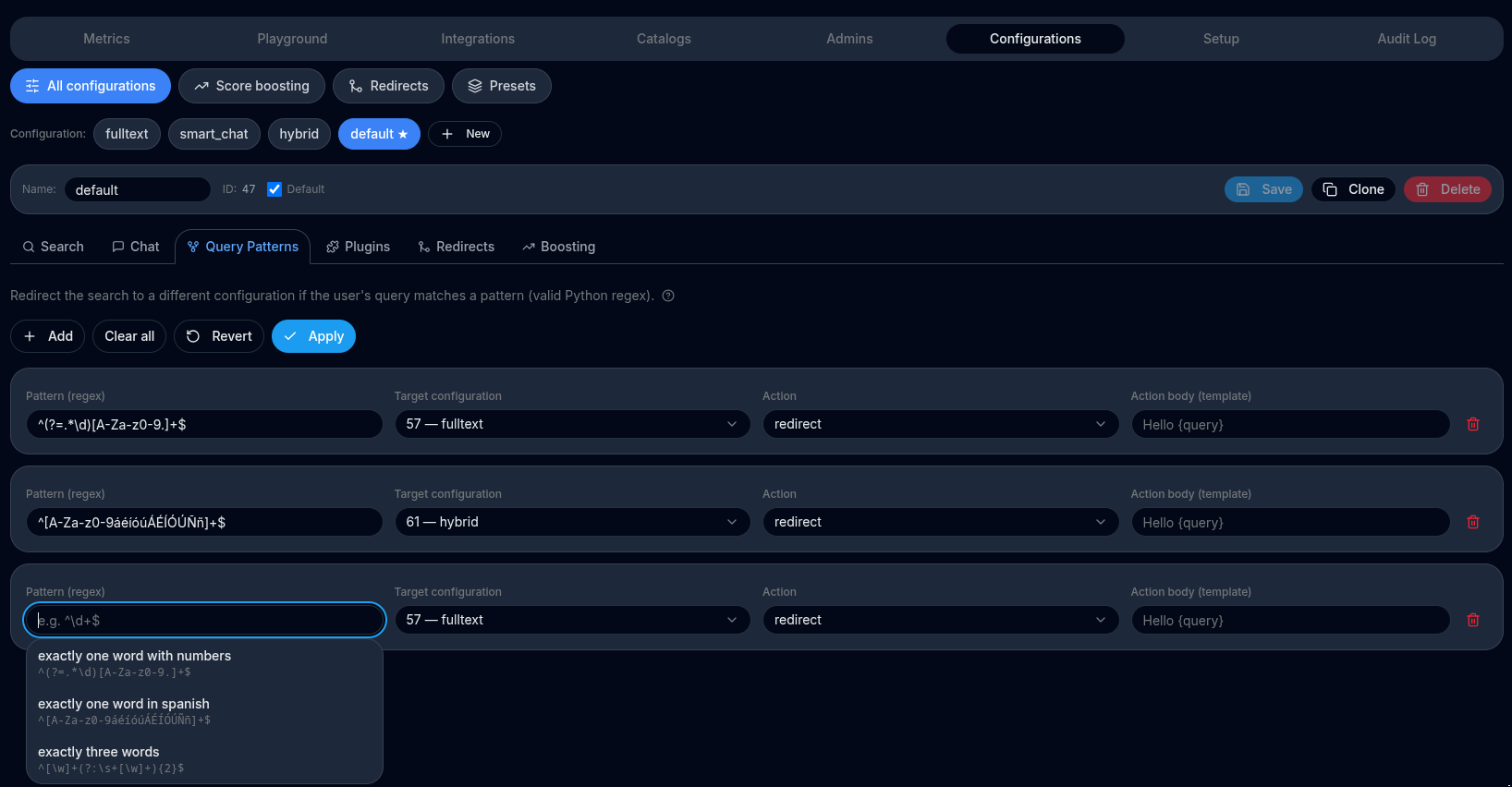
This feature allows to redirect the search or chat operations to other configurations depending on the user's query.
By using regular expressions, user's queries can be matched and redirected to other configurations, so this one acts as an "orchestrator" and fallback.
This is useful when you want to differentiate different user's objectives like searching for SKU, queries with more than 3 words, etc.
Pattern expressions
Right now we only support regular expressions compatible with Python / Javascript to match an user's query string. In the future we plan to add some helpers and easy to use expressions.
Examples:
- Exactly one word of letters/digits/dots that contains at least one dot (sku detection)
^(?=.*\.)[A-Za-z0-9.]+$
- Exactly one word of letters and digits that starts with
"foo"(sku detection)
^foo[A-Za-z0-9]*$
- Exactly one word of letters/digits/dots that contains at least one digit (sku detection) pattern = '^(?=.*\d)[A-Za-z0-9.]+$'
^(?=.*\d)[A-Za-z0-9.]+$
(Positive lookahead enforces “must contain numbers”.)
- Exactly three words supporting words with numbers and non ascii characters like tildes, eñes, etc.
^[\w]+(?:\s+[\w]+){2}$
- More than 4 words (i.e., at least 5 words)
^[\w]+(?:\s+[\w]+){2}$
Actions
Each pattern rule has an action field that controls what happens when the expression matches. Two actions are supported.
redirect action#
If match, use a different configuration instead
Redirects the search to a different chat configuration when the query matches. The original query is kept as-is; only the configuration that drives the search (mode, prompt, model, etc.) changes.
This is useful when you need radically different search behaviour for a specific query shape. For example, a SKU lookup (one short alphanumeric token) should run as a fast fulltext search, while a natural-language query should run as semantic search:
- Create a second configuration (e.g. sku-search) with
mode = fulltext. - In your default configuration, add a pattern rule:
- expression:
^(?=.*\d)[A-Za-z0-9.]+$(exactly one word that contains at least one digit) - action:
redirect - target configuration: sku-search
When a user types "ABC-1234" the SKU configuration is used; any other query falls through to the default semantic configuration.
Edit query action#
If match, rewrite the query before searching
Rewrites the query string before the search runs. The rewritten query is used for both the vector embedding and any fulltext matching; everything else (configuration, filters, etc.) stays the same.
The actionBody field is a Python str.format template. The variable {query} is replaced with the original user query at runtime.
Matching regex groups
Besides {query}, every capturing group in the pattern expression is available to the actionBody template. Groups are numbered in the order their parenthesis appears, starting at 1, and exposed as {group1}, {group2}, {group3}, etc. Named groups ((?P<name>...)) are additionally exposed under their own name, alongside their positional {groupN} placeholder.
This lets you split a structured query into parts and reassemble only the pieces you need, without any custom parsing logic. For example, an expression like ^(\w+)-(\w+)-(\w+)$ matched against "A-B-C" makes {group1} = "A", {group2} = "B" and {group3} = "C" available to actionBody. A group that did not participate in the match (e.g. inside an optional (?:...)? branch) is simply left out of the template context — referencing a placeholder that isn't available leaves the query unchanged (see tip below).
This is useful for expanding abbreviations or brand aliases that your index does not contain verbatim, stripping separators from SKU-like queries, or picking out one part of a prefixed query.
| Original query | Pattern | Action body | Final query |
|---|---|---|---|
vsecret |
^vsecret$ |
victoria secret |
victoria secret |
vsecret |
(?i)\bvsecret\b |
{query} |
victoria secret |
find:supercart |
^find:(\w+)$ |
{group1} |
supercart |
ABC-1234 |
^([A-Za-z]+)-(\d+)$ |
{group1}{group2} |
ABC1234 |
ZGB-200-AZ |
^(\w+)-(\w+)-(\w+)$ |
{group1}-{group2}{group3} |
ZGB-200AZ |
Tip
editQuery rules are applied in order and do not stop the chain — subsequent redirect or editQuery rules are still evaluated against the rewritten query. Put the most specific rules first.
Tip
If actionBody references a placeholder that is not available in the template context (e.g. a typo, or a group that did not match), rendering fails silently and the query is left unchanged for that rule.
Redirects#
This feature lets you define query-based redirects for the search experience. In the backoffice, you upload a CSV that maps a user query pattern to a destination URL. When a query matches a pattern, the search experience redirects to the URL you provided.
TODO: screenshot
CSV format
The CSV must include the following columns:
pattern: the query pattern to match.redirectTo: the destination URL to redirect to.
Example:
pattern,redirectTo
"iphone 15",https://example.com/collections/iphone-15
*gift card*,https://example.com/collections/gift-cards
black friday | cyber monday,https://example.com/promos
Pattern syntax
Patterns are converted to case-insensitive matchers. Supported syntax:
foo*matches queries that start withfoo.*foomatches queries that end withfoo.*foo*matches queries that containfoo."exact text"matches the entire query exactly.apple bananamatches queries that contain both words in any order.apple | bananamatches queries that contain either word.
Use these patterns to route users to category pages, promotional landing pages, or curated collections based on their intent.
Postprocessing plugins#
Tip
See section Supported plugins for details on each supported plugin.
Overview
A Search Configuration can optionally include one or more search-results post-processing plugins. These plugins run after the semantic search engine returns its raw ranked results. Each plugin receives the current result list, applies its transformation, and passes the modified list to the next plugin in the chain.
This mechanism allows store administrators to tailor how results are shaped, expanded, filtered, or reorganized before they reach the end-user.
How Post-Processing Works
- Search query is executed using the configured semantic index.
- Raw results are returned (ranked documents, products, SKUs, entities, etc.).
-
Plugins run sequentially, each transforming the result list:
-
Plugin #1 receives the raw results and outputs a modified list.
- Plugin #2 receives the output from Plugin #1, and so on.
- The final transformed list becomes the final search result set.
This “pipeline” design enables flexible, configurable behavior without modifying the core search logic.
Why Use Post-Processing Plugins?
Post-processing plugins allow you to:
- Rewrite or expand result sets dynamically.
- Normalize or re-group items for specific search modes.
- Enforce business-specific rules on top of semantic ranking.
- Address edge cases like SKU-specific searches, product variant behavior, or filtering conditions.
They are especially useful when the business logic differs from the semantic model’s default assumptions.
Example: Product Variant Un-Grouping Plugin
Purpose
In certain store configurations, admins want search results to show individual variants instead of grouped parent products. A common example is enabling “search product by SKU” mode, where each variant SKU should appear as its own search result.
Behavior
When this plugin is enabled:
- Instead of returning the parent product as a single result,
- The plugin expands that product into multiple results — one for each variant matching the search context.
- Ranking information is propagated or adjusted accordingly (implementation-dependent).
- These expanded results are passed along to the next plugin or returned to the UI.
Example Scenario
User Goal: A store admin wants to quickly find a variant by its SKU (e.g., a specific size/color combination).
Without the Plugin: Searching a variant SKU would return the parent product, making it harder to pinpoint the exact variant.
With the Plugin: The post-processing step expands the parent product so the exact SKU variant appears as its own result, improving precision and usability for administrative tasks.
Key Benefits
- Fine-grained control over how search behaves per configuration.
- Composable behavior, enabling multiple transformations.
- Admin-friendly tuning, especially for catalog or product workflows.
- Extensible architecture, allowing new plugins to be added over time.
fenicio-un-group-variants plugin
A fenicio catalog connector will "group" all skus belonging to the same productCode into a single document that contains information custom to each variantCode, like images, stock, price, etc.
This plugin will un-group a single search result product into several, one for each variant.
redirect plugin
Useful plugin that can be used for example, to run another search configuration if current search results are zero. For this particular case, to redirect to another configuration id 44, it must be configured like this:
{"redirectCondition": "zero-results", "targetConfigId": 44}
Presets#
Presets are one-click recipes that solve common search problems by automatically creating and wiring up the required configurations, query-pattern redirects, and post-processing plugins for you.
Instead of manually creating several configurations, writing regular expressions, and connecting redirect rules, you pick a preset and the system takes care of every step.
How presets work
A preset inspects your store's existing configurations and makes the minimum necessary changes to reach the desired state:
- If a required configuration already exists it is updated (e.g. its
modeis corrected). - If it does not exist it is created from the matching system template (
semantic-template,hybrid-template, orfulltext-template). - Presets are idempotent — running the same preset twice leaves your store in the same state.
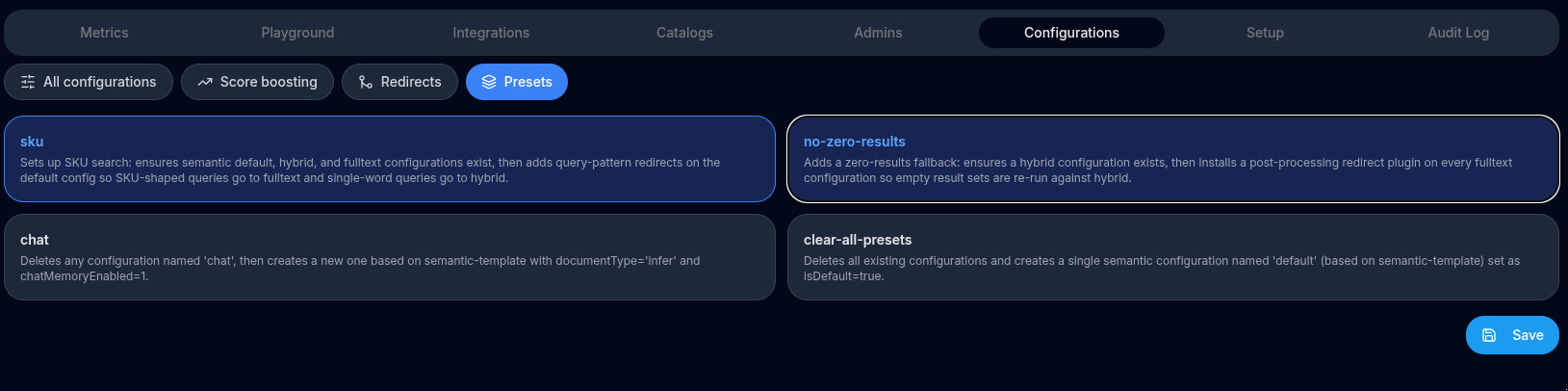
Optimises the store for queries that look like product codes (SKUs): short alphanumeric tokens that may contain digits or dots. The preset routes those queries to a fast fulltext search while keeping natural-language queries on the semantic default.
What it does:
-
Ensures a semantic default configuration exists. Looks for the configuration marked
isDefault, or one nameddefault. If found its mode is set tosemantic. If neither exists a new configuration nameddefaultis created fromsemantic-template. -
Ensures a
hybridconfiguration exists. Looks for a configuration namedhybrid. If found its mode is set tohybrid. If not found one is created fromhybrid-template. -
Ensures a
fulltextconfiguration exists. Looks for a configuration namedfulltext. If found its mode is set tofulltext. If not found one is created fromfulltext-template. -
Installs query-pattern redirects on the
defaultconfiguration. All existing query-pattern redirects ondefaultare replaced with two rules:
| Pattern | Matches | Redirects to |
|---|---|---|
^(?=.*\d)[A-Za-z0-9.]+$ |
A single token that contains at least one digit (classic SKU shape, e.g. ABC-123, 4521.X) |
fulltext |
^[A-Za-z0-9áéíóúÁÉÍÓÚÑñ]+$ |
A single word of letters or digits only (no spaces, no special chars) | hybrid |
Queries that match neither pattern fall through to default and are handled by semantic search.
no-zero-results preset — zero-results fallback
Prevents empty result pages by automatically re-running any search that returns zero results using a broader hybrid configuration.
What it does:
-
Ensures a
hybridconfiguration exists. Same logic as step 2 of theskupreset above. -
Installs a zero-results redirect plugin on every
fulltextconfiguration. For each configuration in the store whosemodeisfulltext, the preset adds (or replaces) aredirectpost-processing plugin configured as:
{ "redirectCondition": "zero-results", "targetConfigId": <hybrid id> }
When a fulltext search returns no results the plugin transparently re-runs the search using the hybrid configuration, which combines fulltext and semantic scoring and is therefore more likely to surface something relevant.
Configurations with any other mode are not affected.
Tip
The sku and no-zero-results presets complement each other well. Run both together to get SKU routing and a zero-results fallback on the fulltext configuration that the sku preset creates:
{
  "storeId": 123,
  "presets": [
    { "id": "sku" },
    { "id": "no-zero-results" }
  ]
}
Score boosting#
You can customize how search results are ranked by boosting the score of products that match specific field values. This helps you promote or demote products in search results without changing the underlying catalog.
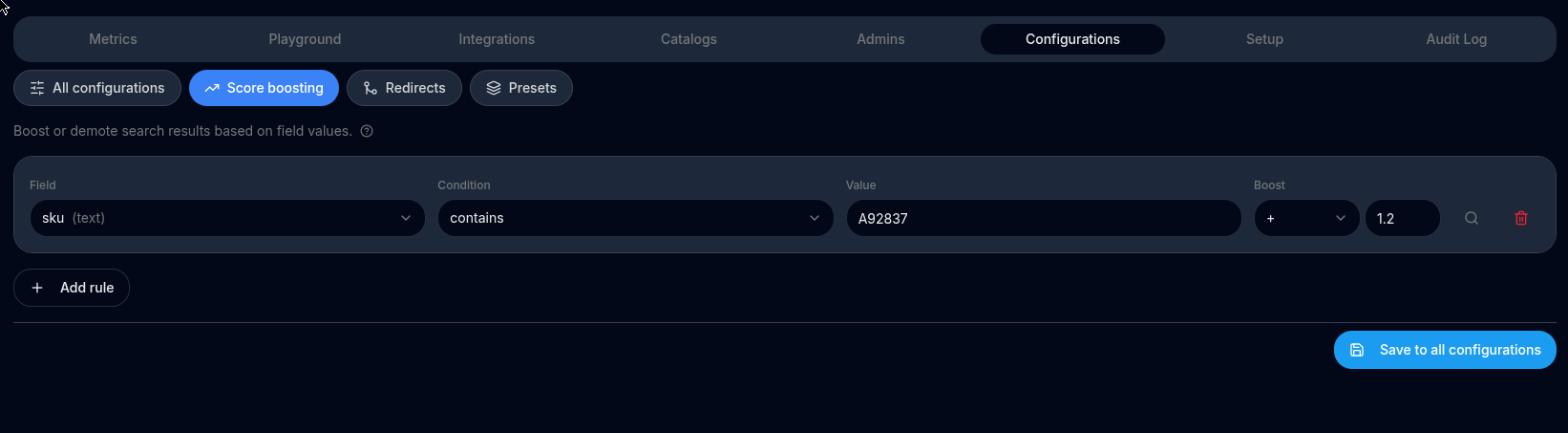
✨ What Is Score Boosting?
Score boosting lets you increase or decrease the relevance score of products based on field conditions. Rules are evaluated against every returned document, and any matching rule multiplies that document's score by the configured boost weight.
For example, if you want products tagged "on-sale" to appear higher, assign them a boost weight of 1.5. Products that do not match the rule keep their original score and are naturally ranked lower.
Boost rules are defined at the search configuration level — each configuration can have its own independent set of rules, so different channels or use-cases can apply different promotion strategies without affecting each other.
🛠️ How to Use
- Open the Search Configuration you want to customize.
- In the Score Boosting section, add one or more rules.
- For each rule:
- Choose a field — any indexed field (e.g.,
category,tags,price,name). - Choose a condition — see the full list of conditions below.
- Enter a value — the comparison value (always a string; numeric values are cast automatically).
- Set a boost weight —
> 1.0promotes,< 1.0demotes (e.g.,0.5halves the score). - Multiple rules on the same field are all evaluated independently — a product can match several rules and each matching rule multiplies the score in sequence.
📋 Condition Reference
Conditions are grouped by the type of indexed field they operate on.
Tag fields (type: tag — comma-separated token lists such as tags, categories)
| Condition | Matches when… | Example |
|---|---|---|
contains |
The comma-separated list contains the exact token | tags contains "eco" |
not_contains |
The comma-separated list does not contain the token | tags not_contains "discontinued" |
Text fields (type: text — free-text fields such as name, description, brand)
| Condition | Matches when… | Example |
|---|---|---|
text_contains |
The field value contains the substring (case-insensitive) | name text_contains "pro" |
text_not_contains |
The field value does not contain the substring (case-insensitive) | description text_not_contains "refurbished" |
text_exactly |
The field value equals the string exactly (case-insensitive) | brand text_exactly "apple" |
Numeric fields (type: numeric — number fields such as price, stock, rating)
| Condition | Matches when… | Example |
|---|---|---|
numeric_gt |
The field value is greater than the number | price numeric_gt "100" |
numeric_lt |
The field value is lower than the number | price numeric_lt "20" |
numeric_eq |
The field value equals the number | rating numeric_eq "5" |
📈 Example — Combining Multiple Rules
Suppose you want to promote affordable, eco-friendly items and demote out-of-stock ones:
| Field | Condition | Value | Boost Weight |
|---|---|---|---|
tags |
contains |
eco |
1.5 |
price |
numeric_lt |
50 |
1.3 |
tags |
contains |
out-of-stock |
0.2 |
A product tagged eco and priced below $50 that is not out of stock would receive a combined multiplier of 1.5 × 1.3 = 1.95, pushing it well above products that match only one rule or none.
Before Boosting
| Product | Tags | Price | Score |
|---|---|---|---|
| Eco Tote Bag | eco | 25 | 1.00 |
| Leather Wallet | premium | 80 | 1.00 |
| Eco Notebook (OOS) | eco, out-of-stock | 15 | 1.00 |
After Boosting (rules above applied)
| Product | Matching Rules | Multiplier | Final Score |
|---|---|---|---|
| Eco Tote Bag | eco ×1.5, price<50 ×1.3 | ×1.95 | 1.95 ✅ |
| Leather Wallet | (none) | ×1.0 | 1.00 |
| Eco Notebook (OOS) | eco ×1.5, price<50 ×1.3, out-of-stock ×0.2 | ×0.39 | 0.39 ⬇ |
💡 Tips
- Use
not_contains/text_not_containswith a boost of0.1–0.5to demote unwanted products (e.g., discontinued, out-of-stock) without fully hiding them. - Numeric conditions let you create price-band promotions (e.g., boost items under $30 during a sale).
- You can add multiple rules for the same field — they all apply independently, so you can boost one tag value while demoting another on the same
tagsfield. - Keep the total number of rules reasonable. A large rule set with broad conditions can flatten score differences and reduce search relevance.
🔧 Advanced Use Cases
- Promote new arrivals:
text_containson astatusfield matching"new". - Demote low-rated products:
numeric_ltonratingwith a boost of0.5. - Spotlight a specific brand:
text_exactlyonbrandwith a high boost. - Suppress sponsored-only items in organic results:
containsontagsmatching"sponsored"with0.1.
Exclude out of stock#

By default all products are considered for search and chat, even those who are out of stock.
By checking this option, both in search and chat operations, out of stock products won't be returned ever.
The logic for which a product is available or not depends on the catalog type.
Chat configurations#
Model#
Choosing an OpenAI Model for Your Store Chat Assistant.
Your chat assistant uses an OpenAI chat model to answer customer questions and recommend products from your catalog. Choosing the right model directly affects:
- Conversation quality (how smart and helpful answers feel)
- Response speed (how fast users get replies)
- Cost (how much each conversation costs you)
This section helps you understand those trade-offs and pick the right model for your store.
How Model Choice Impacts the End-User Experience
1. Intelligence (Answer Quality)
More advanced models:
- Better understand user intent (e.g. vague or multi-step questions)
- Give more accurate product recommendations
- Handle comparisons, filters, and follow-up questions more naturally
Less advanced models:
- Are fine for simple Q&A (“Do you have this in blue?”)
- May struggle with complex reasoning or long conversations
Rule of thumb: Higher intelligence → better shopping assistance → higher conversion potential.
2. Speed (Responsiveness)
- Smaller / “mini” or “nano” models respond faster
- Larger models may take slightly longer, especially with long contexts
Rule of thumb: Speed matters most for high-traffic stores and mobile users.
3. Cost (Price per Conversation)
You pay per token (input + output):
- Larger models cost more but may reduce failed or confusing conversations
- Smaller models are much cheaper and scale well for high volume
Rule of thumb: For most stores, the cheapest model that still feels smart is the best choice.
Available OpenAI Chat Models
Important: Model names below match the exact OpenAI API identifiers.
| Model | Price per 1M tokens (input / output) | Typical Use Case | Max Context (tokens) | Approx. Max Output |
|---|---|---|---|---|
| gpt-5 | $1.25 / $10.00 | Highest intelligence, complex reasoning, premium chat | 400,000 | ~128,000 |
| gpt-5-mini | $0.25 / $2.00 | Strong quality at lower cost | 400,000 | ≤ ~128,000 |
| gpt-5-nano | $0.05 / $0.40 | Ultra-fast, very low cost, simple interactions | 400,000 | ≤ ~128,000 |
| gpt-4o | $2.50 / $10.00 | High-quality multimodal & reasoning | ~128,000 | ~16,000+ |
| gpt-4o-mini | $0.15 / $0.60 | Excellent cost-performance balance | 128,000 | ~16,000 |
| gpt-4.1 | $2.00 / $8.00 | High-quality general-purpose chat | Varies | Varies |
| gpt-4.1-mini | $0.40 / $1.60 | Balanced option for production chat | Varies | Varies |
| gpt-4.1-nano | $0.10 / $0.40 | Fast and cheap baseline | Varies | Varies |
Pricing and limits may change. Always refer to the official OpenAI pricing page for the latest numbers.
How to Read This Table
- Price: Cost per million tokens (input / output)
- Typical Use Case: Best-fit scenario for ecommerce chat
- Max Context: Maximum total tokens (current input + conversation history)
- Max Output: Maximum tokens the model can generate in one response
A larger context allows the assistant to:
- See more products at once
- Use more indexed pages
- Maintain longer, smarter conversations (This is related to property N.)
Recommended Models by Assistant Type
✅ Best Default for Most Stores
gpt-4o-mini
- Excellent balance of intelligence, speed, and cost
- Feels “smart” to users
- Ideal for product discovery, comparisons, and FAQs
🚀 Premium / High-Touch Shopping Assistant
gpt-5 or gpt-5-mini
- Best for luxury brands or complex catalogs
- Strong reasoning and long conversations
- Higher cost, but best experience
⚡ High-Volume / Low-Cost Assistant
gpt-5-nano or gpt-4.1-nano
- Fast and inexpensive
- Best for basic support and simple product lookups
- Not ideal for complex recommendations
Summary
- Start with
gpt-4o-minifor most ecommerce use cases - Upgrade to GPT-5 models for premium, high-intelligence assistants
- Use nano models when speed and cost matter more than depth
Choosing the right model helps you deliver better shopping experiences while keeping costs under control.
Prompt#
The chat prompt is very important and it defines the way and words the chat-assistant respond to users.
IMPORTANT It's mandatory that you always include a statement like the following for correct product suggestion refences:
List each product with this exact format: "- SKU:abcd (Product Name)”.
Some aspects to have into account:
- how many products to suggest
- how formal and how concrete the answer should be
- Explain the business: it's not the same to sell wines and beers than to sell traveling experiences. This helps to more intelligent responses.
- Answer format. For example: It could beging with a greeting message, then a small opinion of each product, finally a greeting-goodbye message
- What to answer if nothing relevant is found
Prompt examples:
For a general product store like amazon:
You are an expert shopping assistant, please always reply in a consistent style.
* Step 1 - Use the below list to suggest relevant products to the user in the subsequent question. Never suggest products outside this list.
* Step 2- Answer in the language that was asked, if you have doubts answer in English
* Step 3- If there is user information available, use it to better look for products considering  interest and all the user information provided
* Step 4 - Format your response like this:
  - An open and catchy selling sentence and call the user by the name If there is user information available with no more than 15 words
  - Suggest up to 4 products with an opinion of yours of why this product is relevant for the user in no more than 15 words each
  -  List each product in a different paragraph
  - List each product with this exact format: "- SKU:abcd (Product Name)”.
  - A closing catchy selling sentence with no more than 15 words
* Step 5 - If no products are found, elaborate a nice re-question asking for more information or details that can help the user find something similar in our list
N (LLM document knowledge)#
This is the amount of documents to be given to GPT call.
The more documents, the more intelligent it will be since it will "know" about more relevant store products for given user query. And also this affects performance and pricing since GPT prompt will be larger (openai pricing and networking).
On the other hand, the less amount of products, the less intelligent it will be but it can be faster and cheaper.
In general you want to keep this value greater than 100 for large stores and 10-20 for stores with few (hundred) products.
Notice that the openAI model also has a limitation for input prompt so there's always a hard max limit.
Chat memory#
By default, the chat assistant treats any question in isolation so is not capable of maintaining a coherent conversation. Check Chat memory enabled so it does.
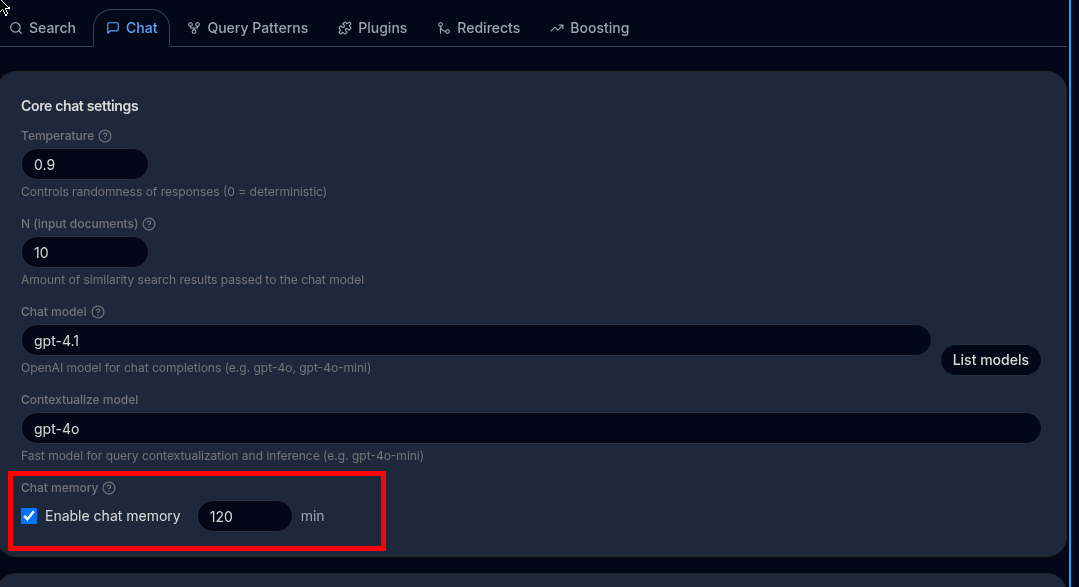
First To support chat memory so user's can refine their results in multiple separate queries, such as, "shoes" -> "red" -> "women size 37", etc, you must to enable Configuration->Chat->"chart memory enabled".
Internally it will first ask the LLM to re-define the user's query based on its previous questions, for example, multiple queries "shoes", "red", "kid" will result on "red shoes for kid"
Important
Enabling this makes the chat a little bit slower (around 1 second).
Make sure in the chat API call you are providing an userId for this to work.
Chat memory minutes#
By default, all of a user's past messages are considered when building the contextualised query. The Chat memory minutes setting lets you limit that window: only messages sent within the last N minutes will be included; older messages are ignored entirely.
This is useful when you want the assistant to "forget" context after a period of inactivity. For example, setting this to 60 means that if the user resumes a conversation after an hour, previous queries will no longer influence the result — the session effectively resets.
| Value | Behaviour |
|---|---|
| (empty / not set) | No time limit — all past messages for the user are considered |
N (minutes) |
Only messages created in the last N minutes are considered |
Note
Chat memory minutes only applies when Chat memory enabled is turned on. If chat memory is disabled the setting has no effect.
Temperature#
The temperature parameter in OpenAI's GPT models controls the randomness or creativity of the model's responses. It influences how the model decides which words to generate next when forming a sentence. The temperature value ranges from 0 to 1, with each end of the spectrum affecting the output differently.
How temperature Works:
-
Low Temperature (
0.0 - 0.3): When the temperature is low, the model produces more deterministic and conservative responses. It will prioritize the most likely word choices, which can result in repetitive, predictable, or factual responses. This is ideal when you want reliable or focused answers, such as when generating code, summaries, or factual information. -
Use Case Example: If you're building a chatbot that needs to give precise, factual answers or if you're working on structured tasks like coding assistance, you would set a lower temperature.
-
Example:
Temperature: 0.2 "The capital of France is Paris." -
High Temperature (
0.7 - 1.0): When the temperature is high, the model's responses become more creative and diverse. The model is more willing to take risks by selecting less probable words, resulting in more varied and creative responses. This can sometimes lead to unexpected or less accurate results, but it's great for creative writing, brainstorming, or conversational agents that need to feel more human. -
Use Case Example: If you're building a writing assistant, a storytelling tool, or brainstorming content ideas, you would set a higher temperature for more creative output.
-
Example:
Temperature: 0.9
"In the mystical forests of Eldoria, the trees whispered ancient secrets."
Summary of Temperature Values:
0.0: Completely deterministic, always picking the highest probability next word.0.1 - 0.3: Conservative, useful for tasks that need accurate or focused answers.0.4 - 0.6: Balanced responses, some diversity but still fairly reliable.0.7 - 1.0: More creative, diverse, and less predictable responses.
Practical Examples:
- Temperature
0.2(Low, factual output): - Input: "What is the weather like in New York?"
-
Output: "It is sunny with a temperature of 75°F."
-
Temperature
0.8(High, creative output): - Input: "What is the weather like in New York?"
- Output: "The sky is a vivid blue, with a gentle breeze making it a perfect day for a stroll through Central Park."
Conclusion:
Adjusting the temperature parameter allows you to control the behavior of the GPT model, making it either more predictable or more creative, depending on your needs. For factual tasks, a lower temperature is ideal, while for creative tasks, a higher temperature can generate more diverse and imaginative outputs.