Catalog#
In this section you learn everything there's to know about connecting your store's product catalog to searchmindai
Catalog samples#
The following is a list of catalog data examples, that you can use to test different verticals or just setup a store for testing without having your own data ready.
Product templates
(catalog type: SearchMindAI)
The following are catalog examples in different formats or realistic commerce verticals for you to test:
- camping, 100 products
- jewelry, 300 products
- liquor, 300 products
- technology, 300 products
- hardware, 300 products
- toys, 300 products
- carnicería, 40 products
- food, 100 products
- plants, 300 products
Pages templates
(catalog type: SearchMindAI)
Document Types#
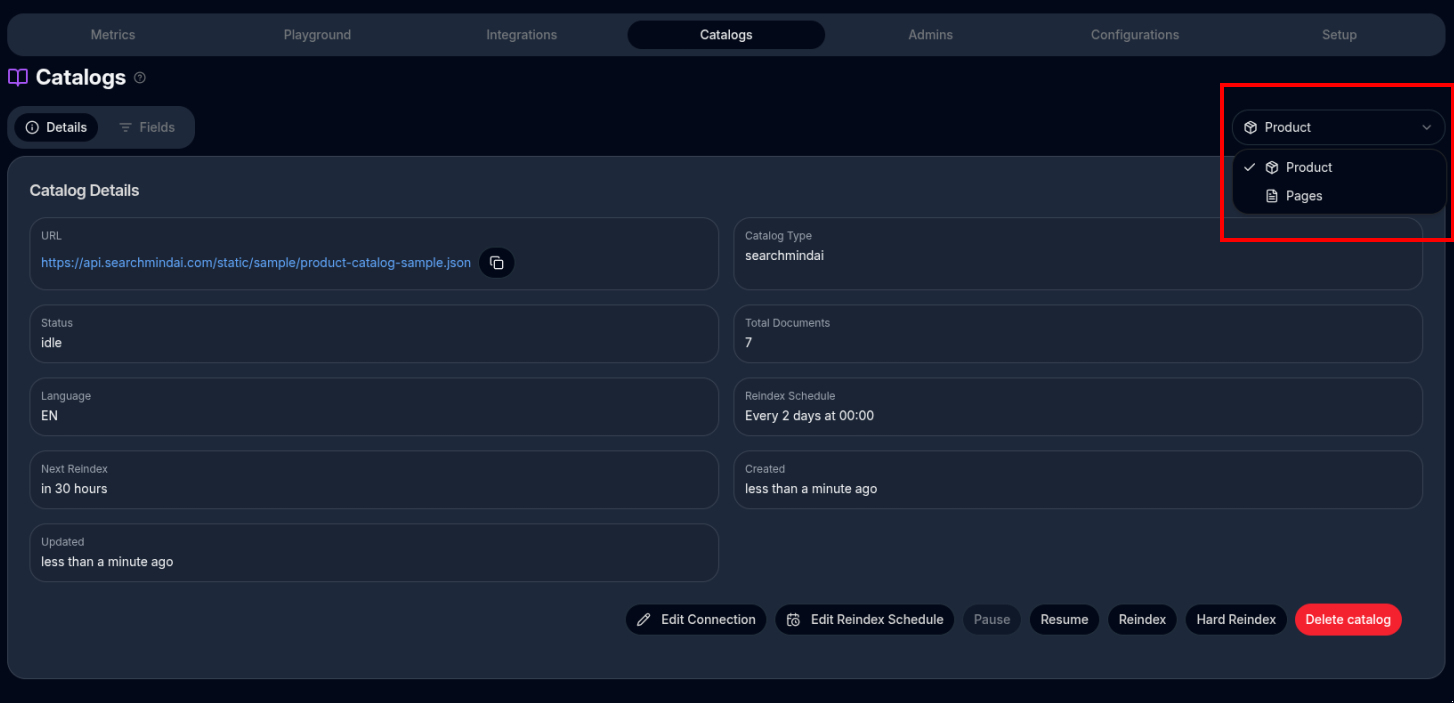
A store can have different catalogs for different "document types". For example, a catalog for products with their names, descriptions, price, categories, image, etc and another catalog for documentation pages such as frequent asked questions like "how to pay", "delivery", "policies", etc.
See products and pages catalogs for examples of both products and pages.
The most important right now is the product catalog but if you want to set up c chat assistant that can answer questions regarding transaction, troubleshooting, payment methods, delivery, etc you want to also use a +pages* catalog:
Fields#
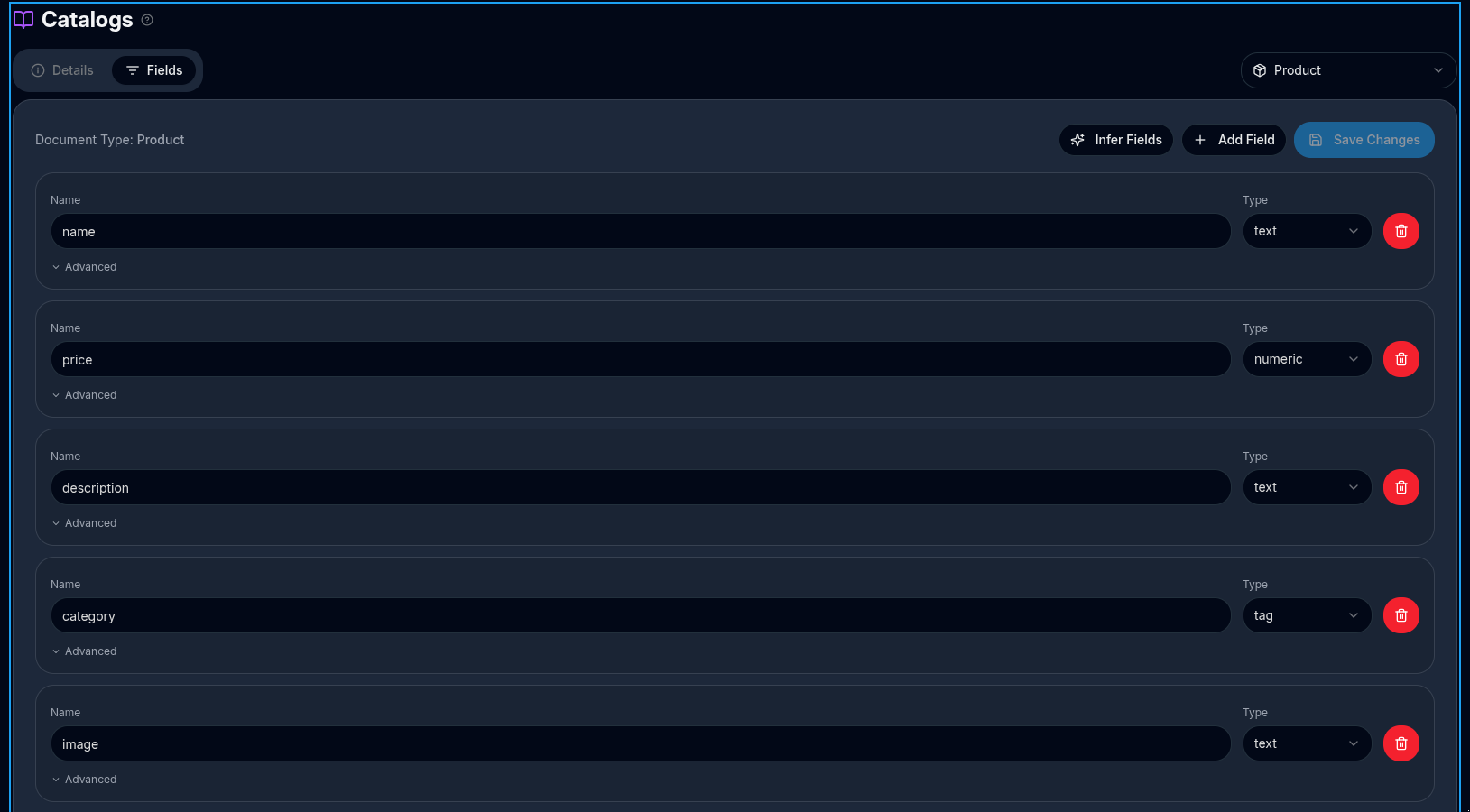
For each document, the only mandatory field is id. The rest fields are free and up to the backend store.
When loading your catalog, you want to declare fields like name, description and price but it's up to you. For example in a traveling store you will have a field call departure-date or city where in a pharmacy you could have field symptoms or drug.
There could be even some fields in the catalog source (json, csv, etc) that you want to ignore to avoid semantic noise.
Field types#
When defining your product catalog, each field must be assigned a field type. Field types determine how data is indexed and how it can be used by search, filters, and chat features.
The platform supports three field types: text, tag, and numeric. Choosing the correct type is essential for optimal search relevance and filtering behavior.
Text fields#
Text fields are used for free-form, human-readable content. They are fully searchable and optimized for relevance ranking, autocomplete, and natural language queries.
Use text fields for information that users are likely to search for or read, but not filter on.
Common examples:
- name – Product name or title
- description – Full product description
- shortDescription – Short marketing summary
- brandDescription – Descriptive brand text
Typical use cases: - Keyword search - Relevance ranking - Search suggestions - Chat answers and explanations
Text fields cannot be used for faceting or filtering.
Tag fields#
Tag fields are used for categorical or label-based data. Each value is treated as a discrete token, making tag fields ideal for filters, facets, and aggregations.
Use tag fields when users should be able to filter or refine results by selecting values.
Common examples:
- category – Product categories (e.g. Shoes, Electronics)
- brand – Brand name (e.g. Nike, Apple)
- tags – Custom labels (e.g. New, Sale, Eco-friendly)
- color – Product color options
- size – Size labels (S, M, L, XL)
Typical use cases: - Faceted navigation - Filters and refinements - Category pages - Grouping and clustering results
Tag fields support multiple values per product (for example, a product can belong to multiple categories).
Numeric fields#
Numeric fields are used for numbers that should be compared, sorted, or aggregated. They support range filtering and statistical calculations.
Use numeric fields for any measurable or sortable values.
Common examples:
- price – Product price
- weight – Product weight
- rating – Average customer rating
- stock – Inventory quantity
- discountPercentage – Discount value
Typical use cases: - Range filters (e.g. price between 50 and 100) - Sorting (e.g. lowest to highest price) - Facet statistics (min, max, averages) - Conditional logic in search and chat
Numeric fields must contain valid numbers only. Textual values are not supported.
Choosing the correct field type ensures better search relevance, accurate filters, and a smoother experience for your users.
See related documents:
Field inference#
As shown in Getting started with catalog fields, the 'infer' fields operation helps inferring all fields in a catalog
IMPORTANT
However, is not magical and is strongly suggested you to review the types were assigned correctly, in particular make sure you are not over-using the tag field or adding fields which are not necessary.
Fixing fields with LLM#
Sometimes, there are text fields which need to be fixed or preprocessed. Some reasons could be:
- Too long: Very long descriptions can add lot of noise in semantic search or in chat responses. Also they have a negative impact particularly in chat responses
- Dirty or misspelled: Sometimes when the text is extracted from a webpage they can have characters escaped incorrectly, or with mixed html tags or simply with misspellings. This could cause low quality semantic & full text search or chat responses.
So, the user can define a index field "fix prompt". If so, before indexing that field, the text will be fixed by GPT using given prompt.
IMPORTANT: On reindex, which compares field changes, fields with a "fix prompt" will be ignored since they will always become different.
Examples
The following are three different ways of fixing a big description text on a furniture store. The first will produce 1-2 sentences. Second will produce a list of relevant features and the third one just a list of keywords (similar to SEO keywords)
Summarize in 1-2 sentences
PROMPT:
Eres un editor de productos para e-commerce especializado en mobiliario. A partir de un texto extenso y sin estructura, genera una descripción optimizada para búsqueda en tiendas en línea. La descripción debe enfocarse únicamente en las características relevantes del producto, como: dimensiones, materiales, colores, opciones de personalización, categorías, uso, mantenimiento y cualquier otra especificación técnica importante. Evita cualquier lenguaje de venta, frases promocionales o información redundante. Mantén la redacción clara y concisa, organizada en 1 o 2 oraciones.
OUTPUT:
La Silla Inés cuenta con un diseño clásico y versátil, ideal para diversos estilos de decoración desde modernos hasta rústicos. Está fabricada con una estructura de madera robusta y ofrece un asiento tapizado en una amplia gama de telas personalizables. Sus dimensiones compactas la hacen adecuada para espacios reducidos, y su respaldo tapizado en tela sintética facilita su mantenimiento. Además, su diseño multifuncional permite su uso en diferentes áreas del hogar.
List of features
PROMPT:
Eres un editor de productos para e-commerce especializado en mobiliario. A partir de un texto extenso y sin estructura, genera una descripción optimizada para búsqueda en tiendas en línea. La descripción debe enfocarse únicamente en las características relevantes del producto, como: dimensiones, materiales, colores, opciones de personalización, categorías, uso, mantenimiento y cualquier otra especificación técnica importante. Evita cualquier lenguaje de venta, frases promocionales o información redundante. Mantén la redacción clara y concisa, organizada en formato de lista Descripción de producto:
OUTPUT:
Descripción del Producto: Silla Inés
- Diseño: Clásico y versátil, adecuado para diversos estilos de decoración como moderno, rústico o contemporáneo. Silueta elegante y atemporal.
- Dimensiones: Compacta, ideal para espacios reducidos.
- Materiales:
  - Estructura: Madera robusta, proporciona estabilidad y durabilidad.
  - Asiento: Tapizado en una variedad de telas a elegir, personalizable según preferencias.
  - Respaldo: Tapizado en tela sintética, resistente al desgaste diario.
- Comodidad: Asiento y respaldo tapizados para mayor confort.
- Personalización: Amplia gama de opciones de telas para el asiento, permitiendo seleccionar color y textura.
- Mantenimiento: Fácil limpieza con un paño húmedo y limpiador suave, ideal para hogares con niños o mascotas.
- Multifuncionalidad: Adecuada para comedor, rincones de lectura, escritorios o como asientos adicionales en eventos.
- Envíos: Disponible para envío a todo Uruguay.
Nota: La Silla Inés combina funcionalidad, estilo y comodidad, siendo una elección ideal para cualquier hogar.
Extract keywords
PROMPT:
Eres un generador de keywords para SEO e-commerce especializado en mobiliario. A partir de un texto extenso y sin estructura, genera un listado de adjetivos (keywords). Evita mencionar categorias y usar oraciones, simplemente imprime los adjetivos que describen a este producto, por ejemplo: "rojo, grande, roble, robusto, barato, etc". Enfocate en adjetivos aplicables a mobiliario tal como tamaño, color, madera, precio, estetica, diseño, textura, durabilidad, etc. Descripción de producto:
OUTPUT:
elegante, cómoda, clásica, versátil, atemporal, funcional, decorativa, acogedora, suave, resistente, duradera, sólida, estable, compacta, sofisticada, personalizable, vibrante, sencilla, práctica, multifuncional, estilizada.
Fields weights#
Each index field has a weight property (default: 1) that controls how much influence that field has on semantic search relevance.
How weight affects search
When the system builds the embedding text for a document, fields with a higher weight are placed first and their value is repeated proportionally more times. A field with weight=2 appears twice in the embedding text, weight=3 three times, and so on up to a maximum of 5.
This means a product's name field with weight=2 contributes roughly twice as much signal to the embedding vector as a description field with weight=1. Queries that match the name will therefore score higher than queries that only match the description.
Example: for a document with name="Red Leather Sofa" and description="Comfortable three-seat sofa", the embedding text produced at different weights would be:
| Field | Weight | Contribution to embedding text |
|---|---|---|
name |
1 | Name: Red Leather Sofa . |
name |
2 | Name: Red Leather Sofa . Name: Red Leather Sofa . |
name |
3 | Name: Red Leather Sofa . Name: Red Leather Sofa . Name: Red Leather Sofa . |
Weight 0 — exclude a field from search
Setting a field's weight to 0 removes it from the embedding text entirely. The field is still stored and returned in search results, but it contributes no signal to semantic or full-text search.
Use weight=0 for fields that should be available to your application (for display, filtering, or sorting) but that would add noise to search if included — for example internal SKUs, raw supplier codes, or technical identifiers that users would never search for.
Connectors#
SearchMindAI connector#
The default catalog SearchAiConnector connector. It supports both JSON array of objects or CSV. In both formats, the id field is mandatory.
Woo commerce#
In order to connect to wooCommerce catalog you need an API key consumer_key and consumer_secret values.
Step-by-Step Instructions: 1. Log in to your WordPress Admin Dashboard.
-
Navigate to WooCommerce Settings: Go to WooCommerce > Settings.
-
Access the API Keys Section: Click on the Advanced tab and then select REST API from the sub-menu.
-
Create a New API Key: Click on the Add Key button.
-
Fill in the Key Details:
-
Description: Enter a meaningful name for the key (e.g., "Product Export Script", "Inventory Sync").
-
User: Select the WordPress user account you want to link the key to. This determines the API key's permissions level. For security, it's best to use a user with only the necessary permissions (e.g., an Editor, not an Administrator, if possible).
-
Permissions: Read permissions is sufficient.
Fenicio#
For Fenicio stores, you just paste your store XML feed URL, something similar to https://www.coolstore.com/feeds/productos/std/fenicio.
The connector takes care of extracting all relevant data and mapping/processing some information so it's available to fenicio related tools such as Post processing plugins.
Shopify#
To connect your Shopify catalog using the API, you need two required values: - Admin API access token - Store domain
The steps below explain how to obtain both.
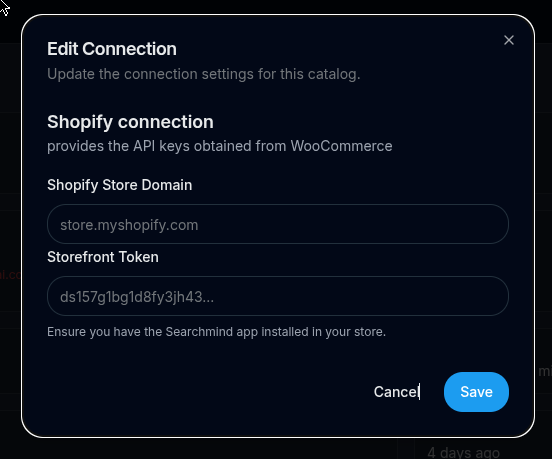
Getting the Shopify Admin API access token
- Log in to your Shopify Admin dashboard.
- From the left menu, go to Settings → Apps and sales channels.
- Click Develop apps.
- If this is your first time here, you may need to enable app development.
- Click Create an app and give it a name (for example, Search & Chat Connector).
- Open the newly created app and go to Configuration.
- Under Admin API integration, click Configure.
- Select the required scopes for your catalog connector. At minimum, enable:
read_productsread_product_listingsread_collections- Save the configuration.
- Go to API credentials.
- Click Install app and confirm the installation.
- After installation, copy the Admin API access token.
⚠️ The Admin API access token is shown only once. Store it securely.
Getting the store domain
Your store domain uniquely identifies your Shopify store and is required for API access.
- In the Shopify Admin dashboard, go to Settings → Domains.
- Copy your primary domain, which typically looks like:
your-store-name.myshopify.com
Alternatively, you can find it directly in your browser’s address bar when logged into Shopify Admin:
[https://admin.shopify.com/store/your-store-name](https://admin.shopify.com/store/your-store-name)
In this case, the store domain is:
your-store-name.myshopify.com
Once you have both the Admin API access token and the store domain, you can use them to configure the Shopify catalog connector via the API.
Generic XML connector#
This document explains how to configure and use the XML Catalog Connector in the admin panel of the e-commerce search platform.
The connector is generic (works with any XML catalog using XPath selectors) and also includes custom implementations, currently TataUy, which applies additional post-processing logic specific to that feed.
1. What this connector does
The XML Catalog Connector:
- Downloads an XML catalog from a URL
- Extracts a list of products using an XPath selector
- Converts each XML product node into a structured JSON-like document
- Generates a required
idfield - Optionally applies implementation-specific transformations
- Formats documents for indexing/search
2. Configuration fields (Admin Panel)
Required / Optional Fields
| Field | Type | Description |
|---|---|---|
listSelector |
string | XPath pointing to the list of product nodes |
idField |
string | Field used to generate the document id |
implementation |
string (optional) | Custom behavior (tatauy or empty) |
Default configuration
{
  "listSelector": "./producto",
  "idField": "refid",
  "implementation": null
}
Pages catalog#
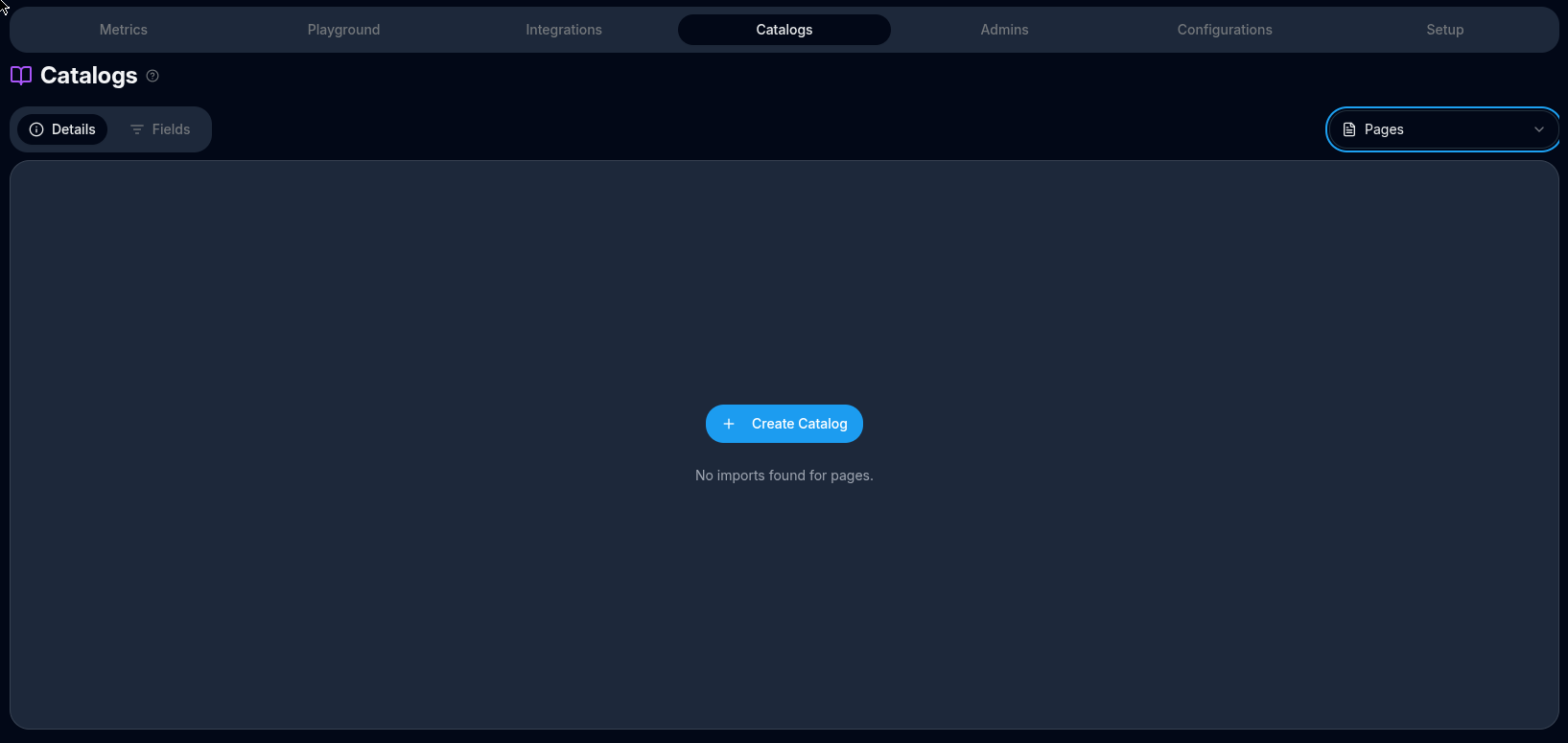
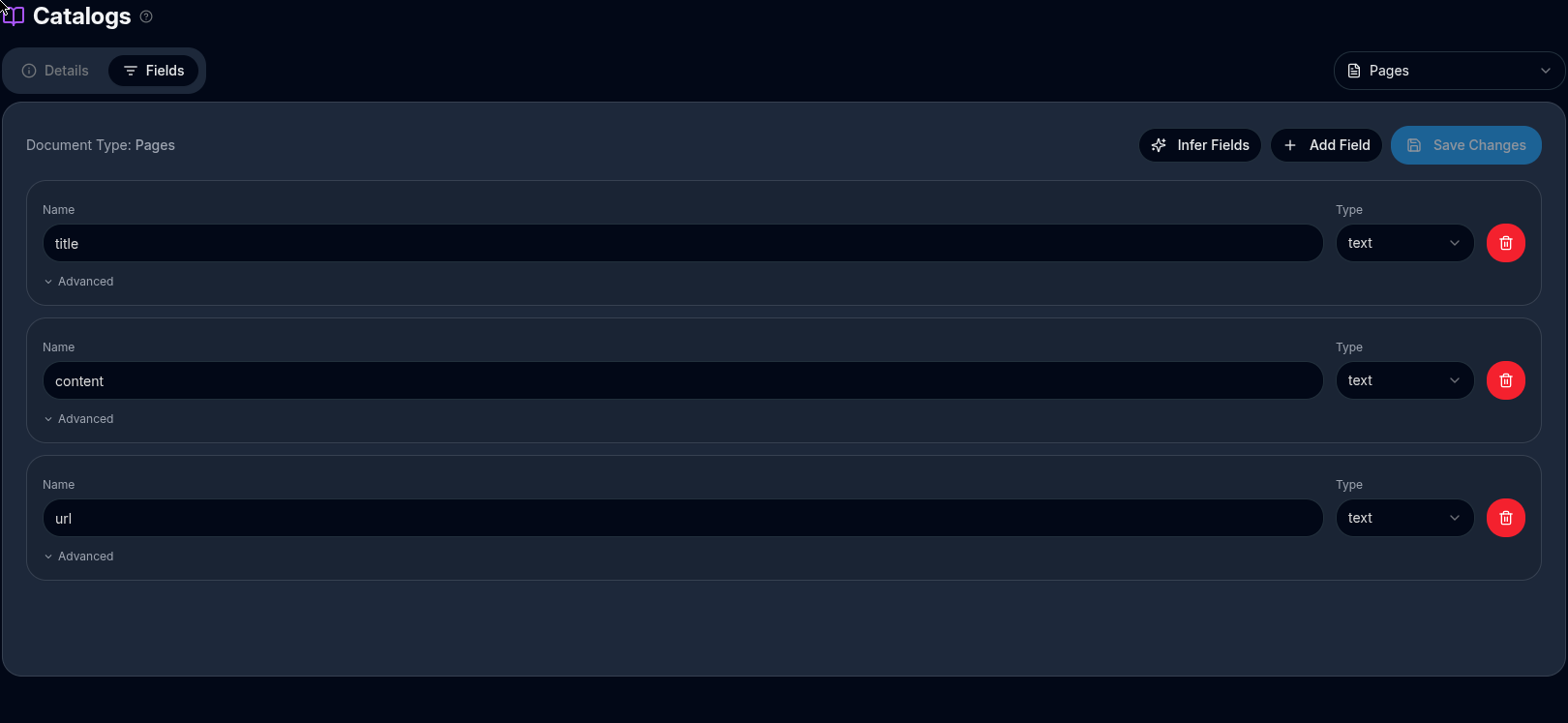
To support chat answering about pages, such as "how can I pay?", "what's delivery time?", etc, you must create a pages catalog. You can use the template csv or json and the process is very similar to previous sections product catalog creation.
Use pages-catalog-sample.json or pages-catalog-sample.csv templates to get started on how to publish your "pages" documentation.
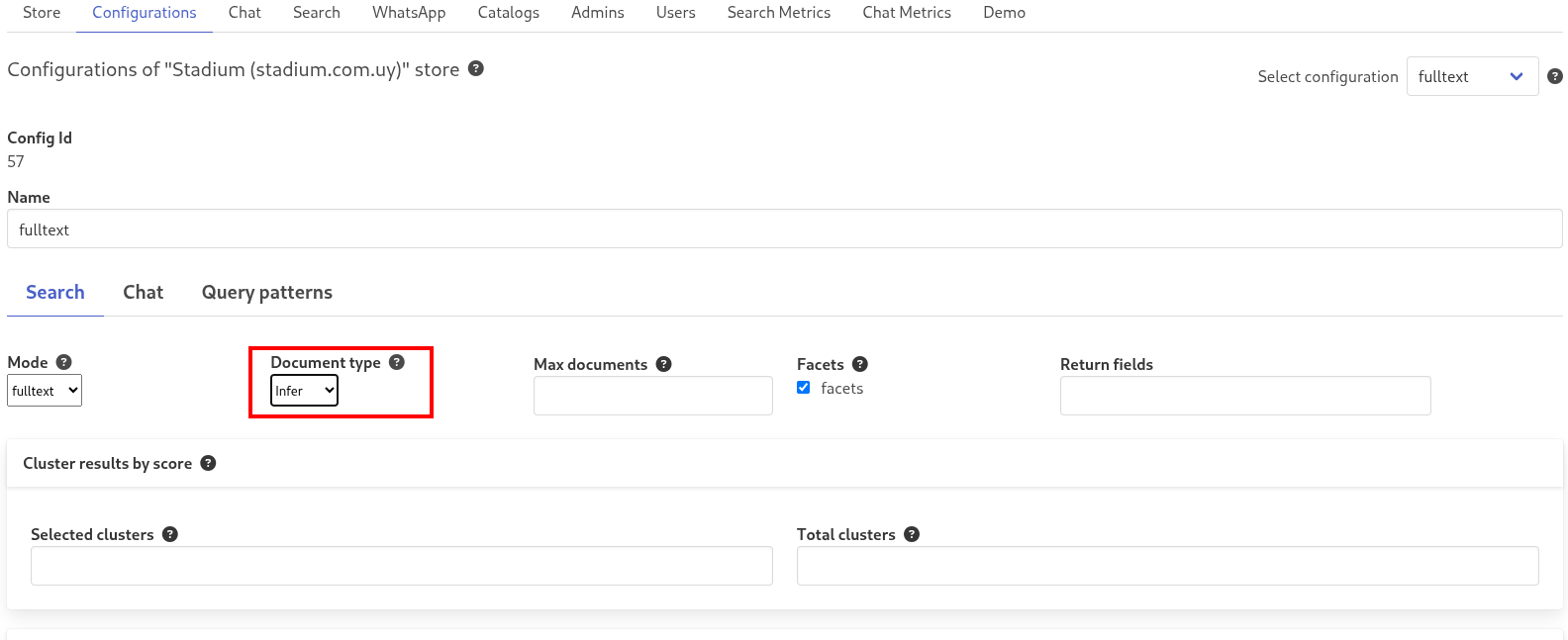
Also make sure you activate documentType=infer in your configuration:
Reindex scheduling#
In order to keep searchmindai index up to date with remote catalog we want to run a reindex operation regularly.
By default, it will run every 48 hours, but this can be changed.
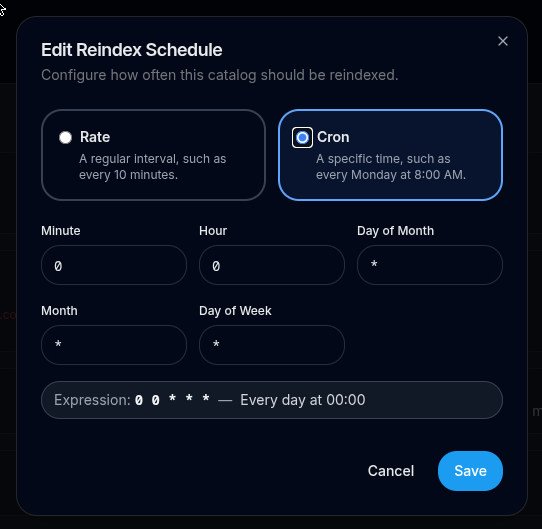
Internally this is stored as a cron expression.
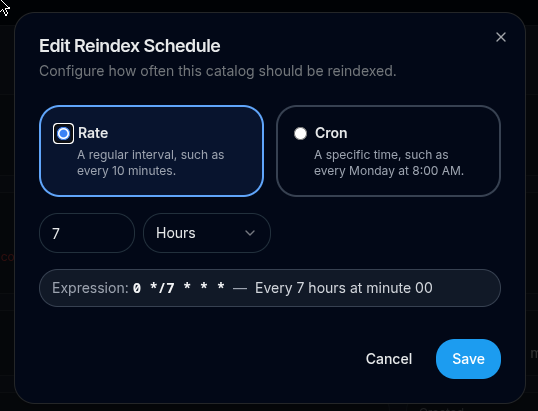
In the admin panel however, there are two editors which can be used for simple rate expressions or complex cron expressions:
- Rate editor: A schedule that runs at a regular rate, such as every 10 minutes.
- Cron editor: A fine-grained schedule that runs at a specific time, such as 8:00 a.m. PST on the first Monday of every month.
Prevent scheduled reindex#
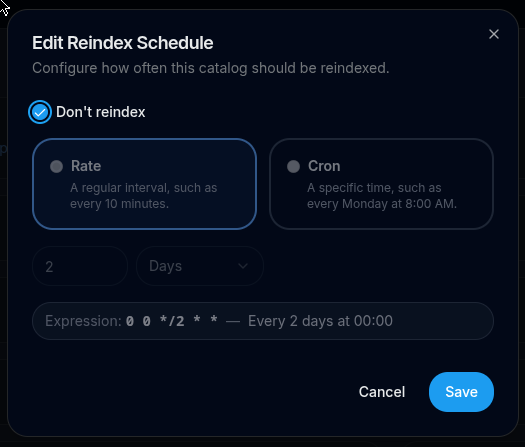
Some stores might want to prevent scheduling at all, for example if they are fully managing the catalog contents using Update documents API.
To do so, click Catalogs -> Details -> Reindex Schedule and check "Don't reindex". If set, the catalog will never be reindexed automatically, but users still can manually reindex using the action buttons:
Catalog actions#
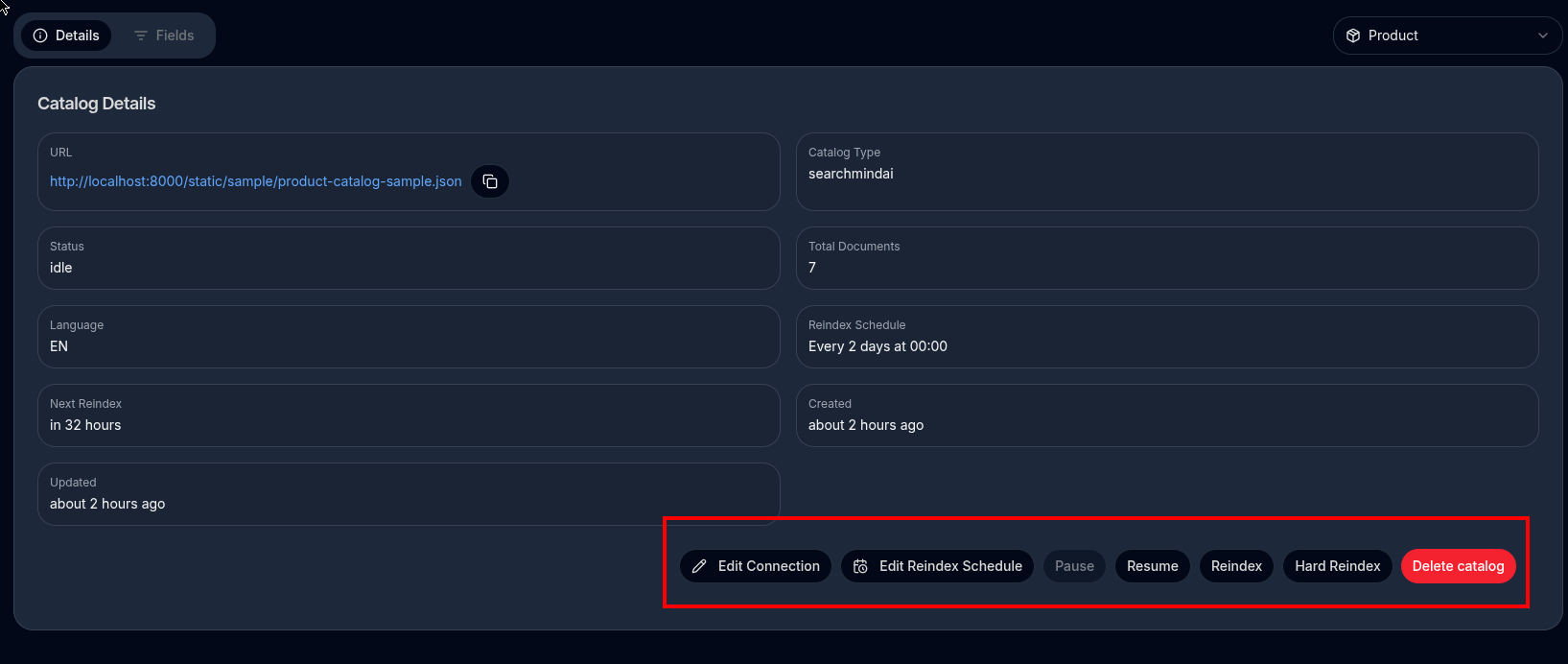
If you created a catalog with an URL, you can perform actions:
- play / pause / resume start indexing all the products given in the URL.
- reindex it will re-read all products from given URL and compare with current documents performing necessary changes to reflect exactly what given URL's have:
- if an existing document is no longer in URL then it's deleted
- if an existing document changed in the URL then it's updated
- if the url has a document that doesn't exists then it's added.
- hard-reindex it forces the full catalog to be reindex, no matter if products changed or not so you make sure it's in sync. (Internal tool)
- delete it deletes the catalog record, fields, and all the document data
Update documents via API#
Use this endpoint to add, update, or delete individual documents in your catalog without triggering a full reindex. It is ideal for keeping your search index in sync with real-time inventory changes — for example, when a product goes out of stock, a new item is published, or a price changes.
Endpoint: POST /admin/stores/{storeId}/catalogDocuments
Authentication: requires the Authorization header set to your admin token. See Admin auth for instructions on obtaining a token.
Request body
{
  "documentType": "product",
  "actions": [
    { "action": "update", "doc": { "id": "SKU-001", "name": "...", "price": 99 } },
    { "action": "delete", "doc": { "id": "SKU-002" } }
  ]
}
| Field | Type | Description |
|---|---|---|
documentType |
"product" | "pages" |
Which catalog to target. |
actions |
array | List of actions to apply. Can mix update and delete in a single call. |
Actions
| Action | Behaviour |
|---|---|
update |
Inserts the document if it does not exist. If the document already exists, the supplied fields are merged into the stored document — only the fields you provide are changed, all other fields keep their current values. A new embedding is generated from the full merged document. Only id is required; all other fields are optional. |
delete |
Removes the document with the given id. Only the id field is required in doc. |
The only mandatory field inside doc is id. All other fields should match the schema you have defined for your catalog.
Response
The endpoint executes all actions synchronously and returns a report describing what happened for each action:
{
  "success": true,
  "added":   { "ids": ["sku-101"] },
  "updated": { "ids": ["sku-100"] },
  "deleted": { "ids": ["sku-discontinued-55"] },
  "errors": [
    { "action": "update", "id": "sku-bad", "message": "embedding service unavailable" }
  ]
}
| Field | Type | Description |
|---|---|---|
success |
boolean | true when the call completed (even if individual actions errored). |
added.ids |
string[] | IDs of documents that were created (did not exist before). |
updated.ids |
string[] | IDs of documents that were updated (already existed). |
deleted.ids |
string[] | IDs of documents that were deleted. |
errors |
array | Per-action failures. Each entry has action, id, and message. Actions listed here were not applied. Other actions in the same call are unaffected. |
Actions that fail are collected in errors and do not affect the remaining actions — a single bad document will not block the rest of the batch.
Large batches — use a long timeout and monitor progress in parallel
This endpoint processes every action in the request body before returning. For large batches (hundreds of documents or more) this can take tens of seconds, because each update action generates a new embedding.
1. Set a long HTTP timeout on your client — at least 120 seconds for batches up to ~500 documents; scale up accordingly for larger payloads.
2. Poll GET /admin/stores/{storeId}/catalogImports in parallel to monitor progress. While the endpoint is running the catalog's status field will read "running". It returns to "idle" (or "error") when the batch completes. The indexedDocuments counter increments as each document is processed, so you can track progress in real time without waiting for the response.
Examples
Add a new product
curl -X POST 'https://api.searchmindai.com/admin/stores/{storeId}/catalogDocuments' \
  -H 'Authorization: <your-admin-token>' \
  -H 'Content-Type: application/json' \
  --data-raw '{
    "documentType": "product",
    "actions": [
      {
        "action": "update",
        "doc": {
          "id": "product-new-001",
          "name": "Roast Beef Seasoning Blend",
          "description": "Premium roast beef seasoning for slow-roasted cuts.",
          "price": 15,
          "categories": "Food Seasonings",
          "tags": "roast beef, seasoning"
        }
      }
    ]
  }'
Update a single field on an existing product
curl -X POST 'https://api.searchmindai.com/admin/stores/{storeId}/catalogDocuments' \
  -H 'Authorization: <your-admin-token>' \
  -H 'Content-Type: application/json' \
  --data-raw '{
    "documentType": "product",
    "actions": [
      { "action": "update", "doc": { "id": "product-001", "price": 9999 } }
    ]
  }'
Only price is supplied — all other fields on product-001 are preserved.
Delete a product
curl -X POST 'https://api.searchmindai.com/admin/stores/{storeId}/catalogDocuments' \
  -H 'Authorization: <your-admin-token>' \
  -H 'Content-Type: application/json' \
  --data-raw '{
    "documentType": "product",
    "actions": [
      { "action": "delete", "doc": { "id": "product-discontinued-007" } }
    ]
  }'
Batch: mixed adds, updates, and deletes in one call
curl -X POST 'https://api.searchmindai.com/admin/stores/{storeId}/catalogDocuments' \
  -H 'Authorization: <your-admin-token>' \
  -H 'Content-Type: application/json' \
  --data-raw '{
    "documentType": "product",
    "actions": [
      { "action": "update", "doc": { "id": "sku-100", "price": 49, "stock": 200 } },
      { "action": "update", "doc": { "id": "sku-101", "name": "New Arrival", "price": 99 } },
      { "action": "delete", "doc": { "id": "sku-discontinued-55" } }
    ]
  }'
IMPORTANT — keep your catalog source URL in sync
This endpoint modifies the live index only. Your catalog source URL (the file SearchMindAI fetches during a scheduled reindex) is not touched.
Because the catalog is reindexed every N hours from that URL, any document you add, update, or delete via this endpoint will be overwritten or restored at the next reindex cycle unless you also apply the same changes to your source file.
The catalog source URL is the single source of truth at reindex time.
Concretely: - A product you deleted here will reappear after the next reindex if it is still in the source file. - A field you updated here will revert to its original value if the source file still holds the old value. - A product you added here will disappear after the next reindex if it is not present in the source file.
Use this endpoint for real-time patches, but always propagate the same changes to your catalog source to make them permanent.
Alternatively you can use prevent scheduled reindex, however is strongly recommended to have all your data in a single source of truth and call reindex from time to time to make sure the data is 100% synchronized.
Update documents via File upload#
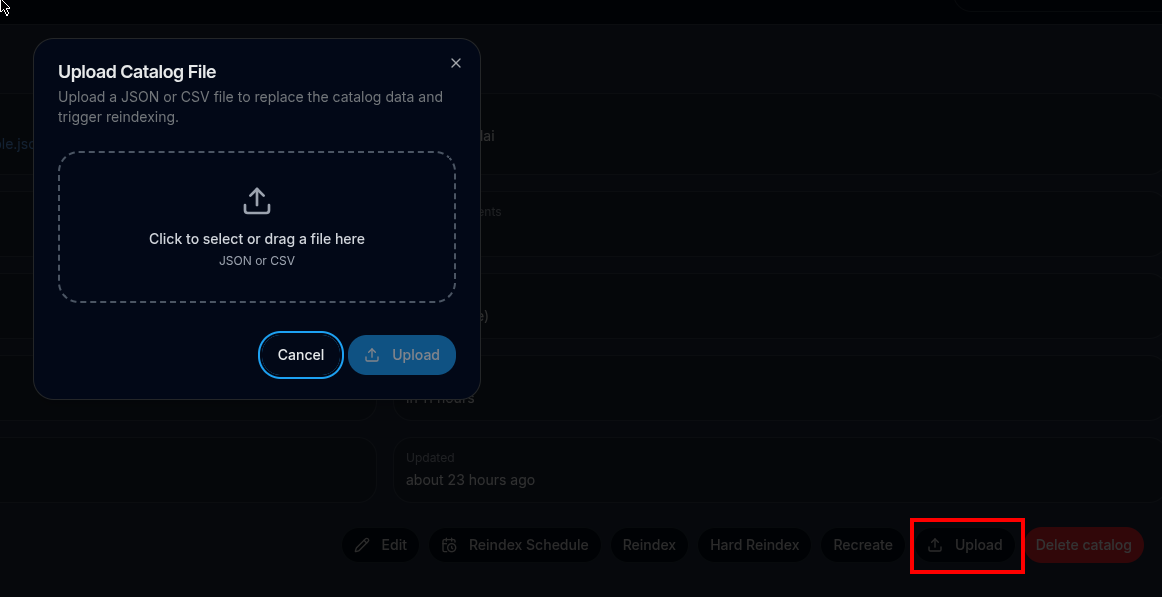
If for some reason you don't want to expose your catalog vía an URL, you can still upload your documents using file upload. This is only supported by SearchMindAI catalog type and uploaded files must be valid SearchMindAI JSON or CSV formats, see products and pages Catalog Samples.